
Introduction
MemberCore Gamification rewards member activity with points, achievements, ranks, and leaderboards. Most third-party gamification plugins only listen for generic events, so the rewards never quite match what’s happening on your site. This one plugs straight into MemberCore and its addons, which means the rewards track what members are really doing: finishing lessons, posting in Circles, completing coaching milestones, and more.
The Three Pillars
- Points. The everyday currency members rack up automatically through your triggers, with optional rate limits to keep things fair.
- Achievements. Collectible badges members earn once for hitting a specific goal.
- Ranks. A simple ladder tied to the running points balance. Members only move up, never down.
Quick Setup
Quick Setup is a guided modal that gets a new site up and running without sending you on a tour through every settings tab. It opens by itself the first time you install the plugin, and you can reopen it any time from the Quick Setup link in the gamification admin header (top right of every MC Gamification page).
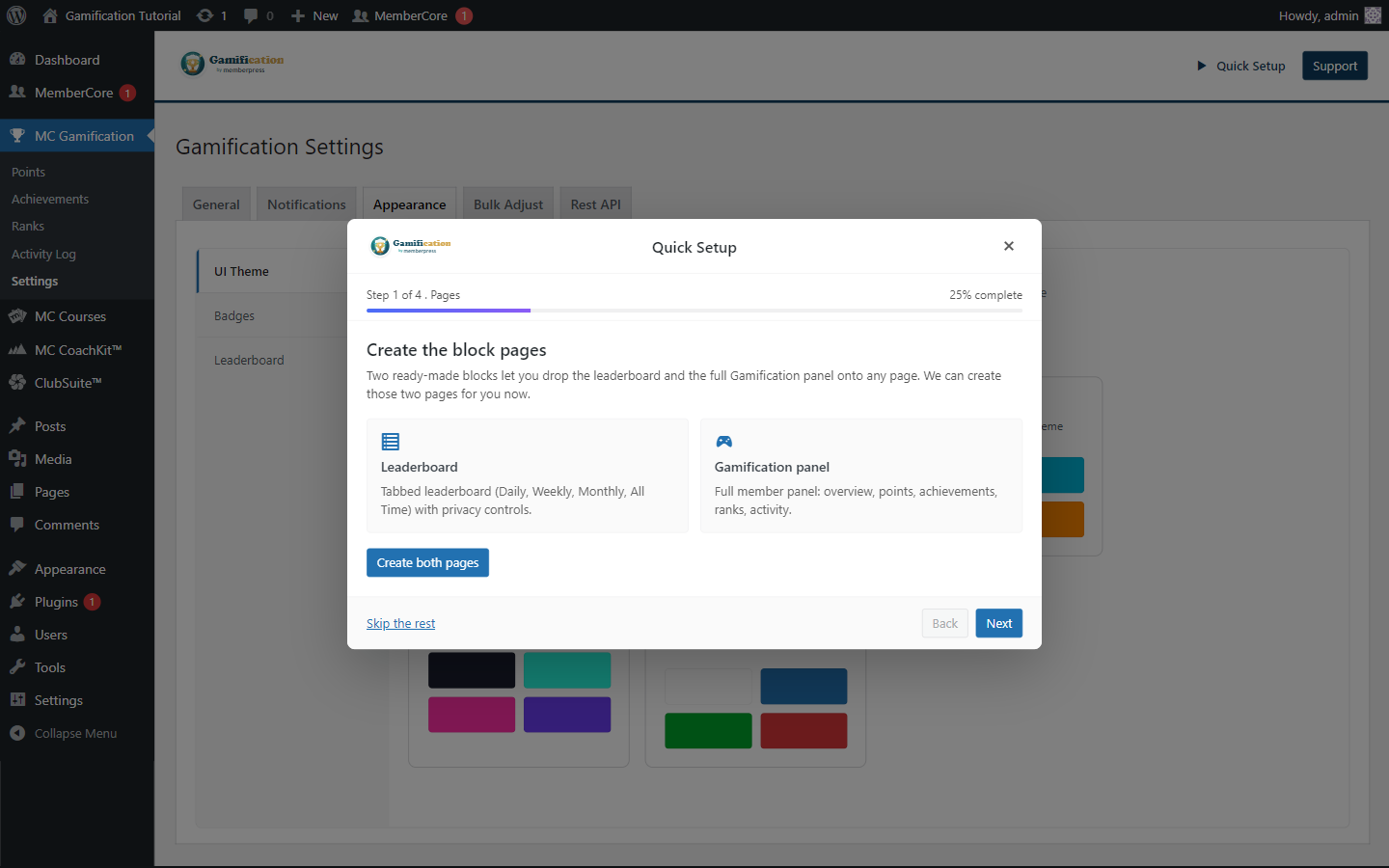
Step 1: Create the public pages
The wizard can spin up two useful pages for you: a Leaderboard page and a full Gamification Panel page. They use the same blocks and shortcodes you can drop in manually anywhere else.
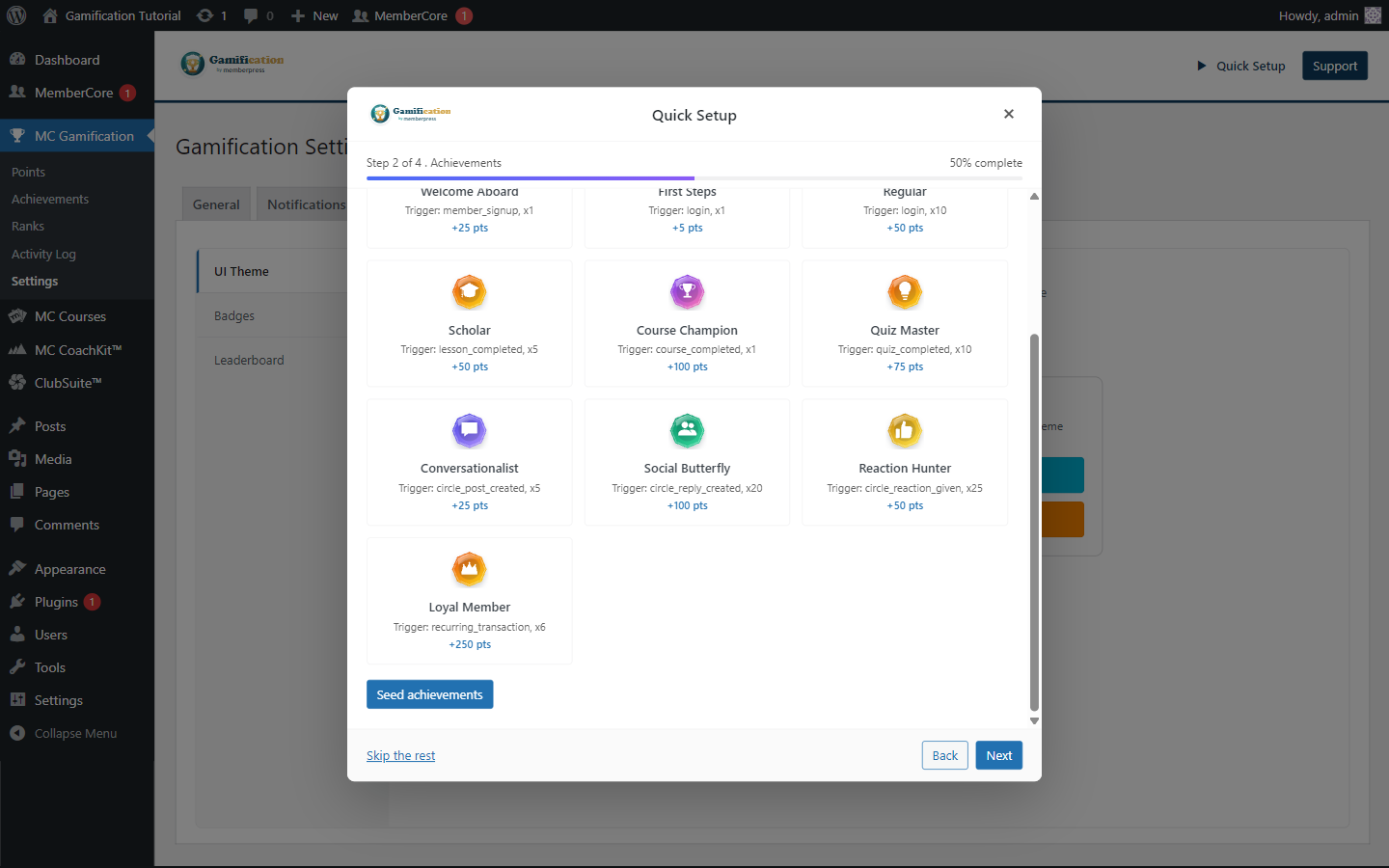
Step 2: Add starter achievements
The starter pack drops in 10 general-purpose achievements with badge icons, point rewards, and ready-made requirements. Anything that leans on an optional addon (Courses, Circles, Quizzes) stays dormant until that addon is active.
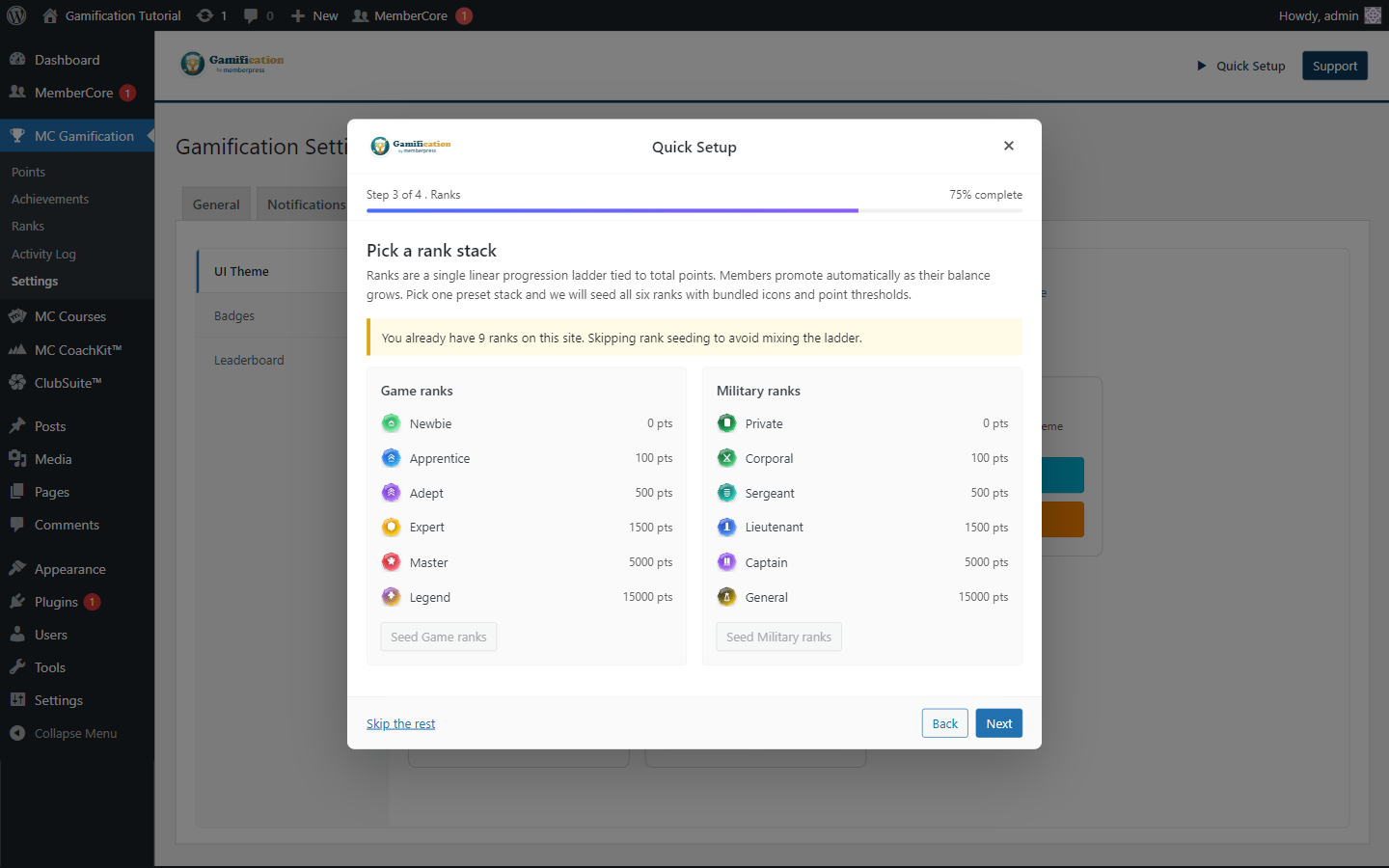
Step 3: Choose a rank ladder
Ranks are a single progression ladder based on total points. Quick Setup offers two six-rank presets to start from: Game ranks and Military ranks. If the site already has ranks, the wizard quietly skips this step so it doesn’t mix two ladders together.
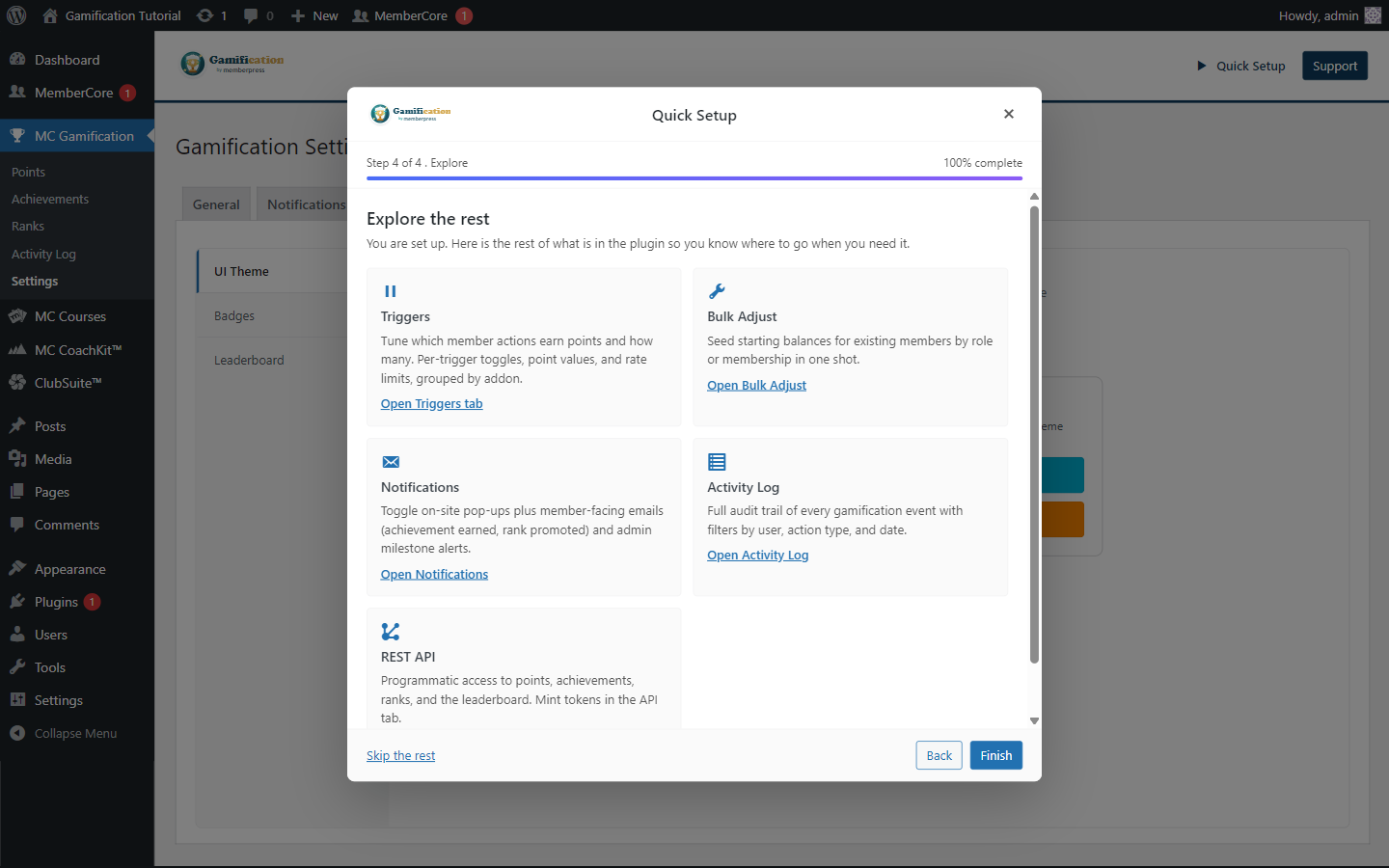
Step 4: Find the next settings
The last step is a quick jumping-off point to the places most admins head next: Points Triggers, Bulk Adjust, Notifications, Activity Log, API and Hooks.
Badge Icon Sets
The Badge Icon Set picker on MC Gamification > Settings > Appearance > Badges decides which bundled SVG library the plugin reaches for whenever an achievement or rank doesn’t have its own uploaded image. All five sets share the same 40+ icon names (star, trophy, medal, fire, and so on), so switching sets re-skins everything at once without breaking any of your existing picks.
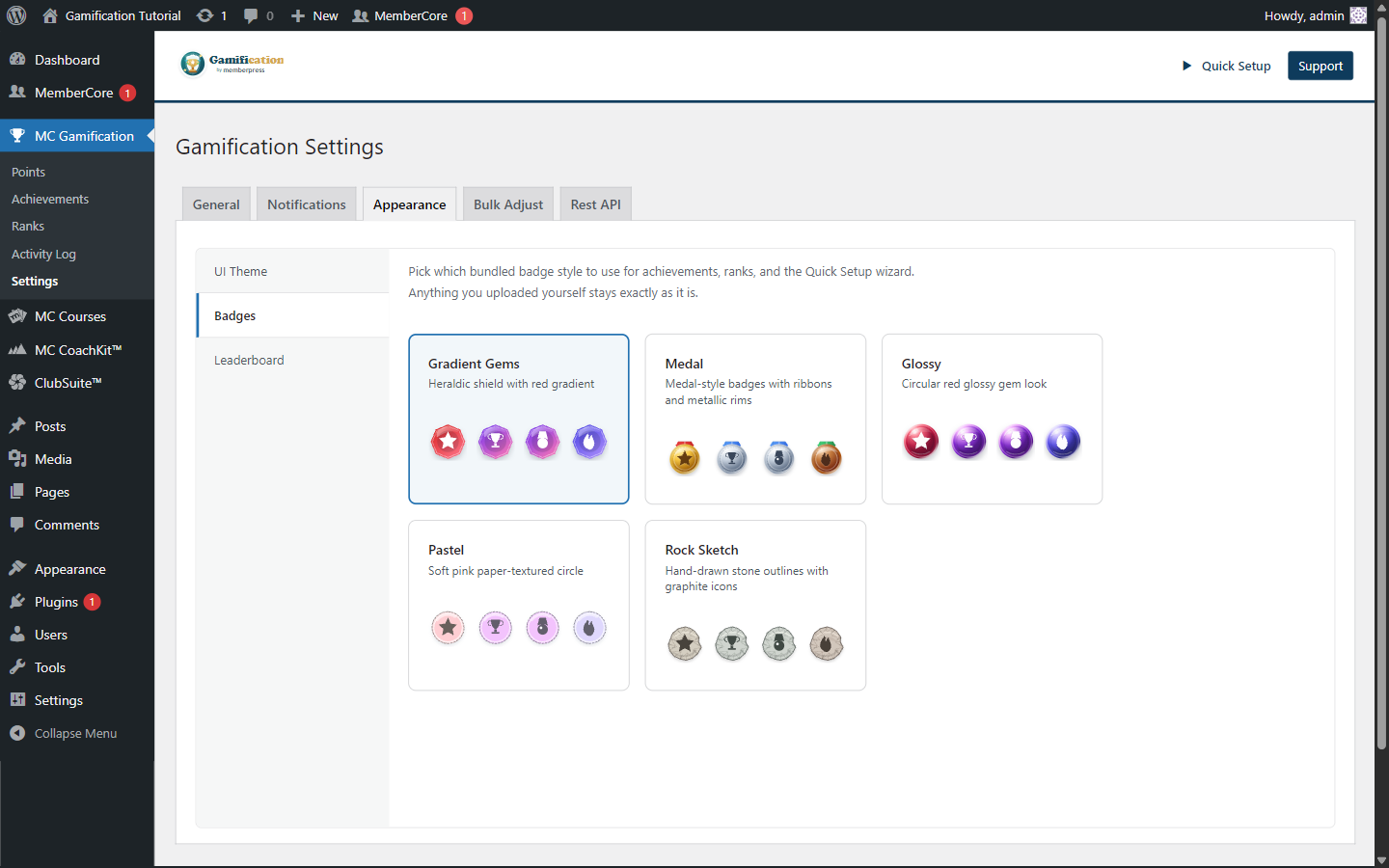
| Set | Look | Use it when |
|---|---|---|
| Gradient Gems (default) | Heraldic shield with a red gradient. | You want the original badge style that ships with the plugin. |
| Medal | Medal-style badges with ribbons and metallic rims. | You want an awards / ceremony vibe that emphasizes earned recognition. |
| Glossy | Circular red glossy gem look. | You want a brighter, polished award look with strong visual contrast. |
| Pastel | Soft pink, paper-textured circle. | You want a softer, friendlier tone for community and learning programs. |
| Rock Sketch | Hand-drawn stone outlines with graphite icons. | You want a quieter, sketch-like style that pairs well with neutral or editorial themes. |
Your choice is saved in mcgf_settings.badge_icon_set. Anything you uploaded yourself for a specific achievement or rank stays untouched, only the icons coming from the bundled library re-skin when the set changes. Code that renders an icon should call BadgeIconHelper::url() or BadgeIconHelper::path(), both of which follow the active set automatically.
UI Themes
The UI Theme setting lives at MC Gamification > Settings > Appearance > UI Theme and is purely cosmetic. Points, achievements, ranks, leaderboards, and any member data stay exactly the same, so switching themes is fully reversible.
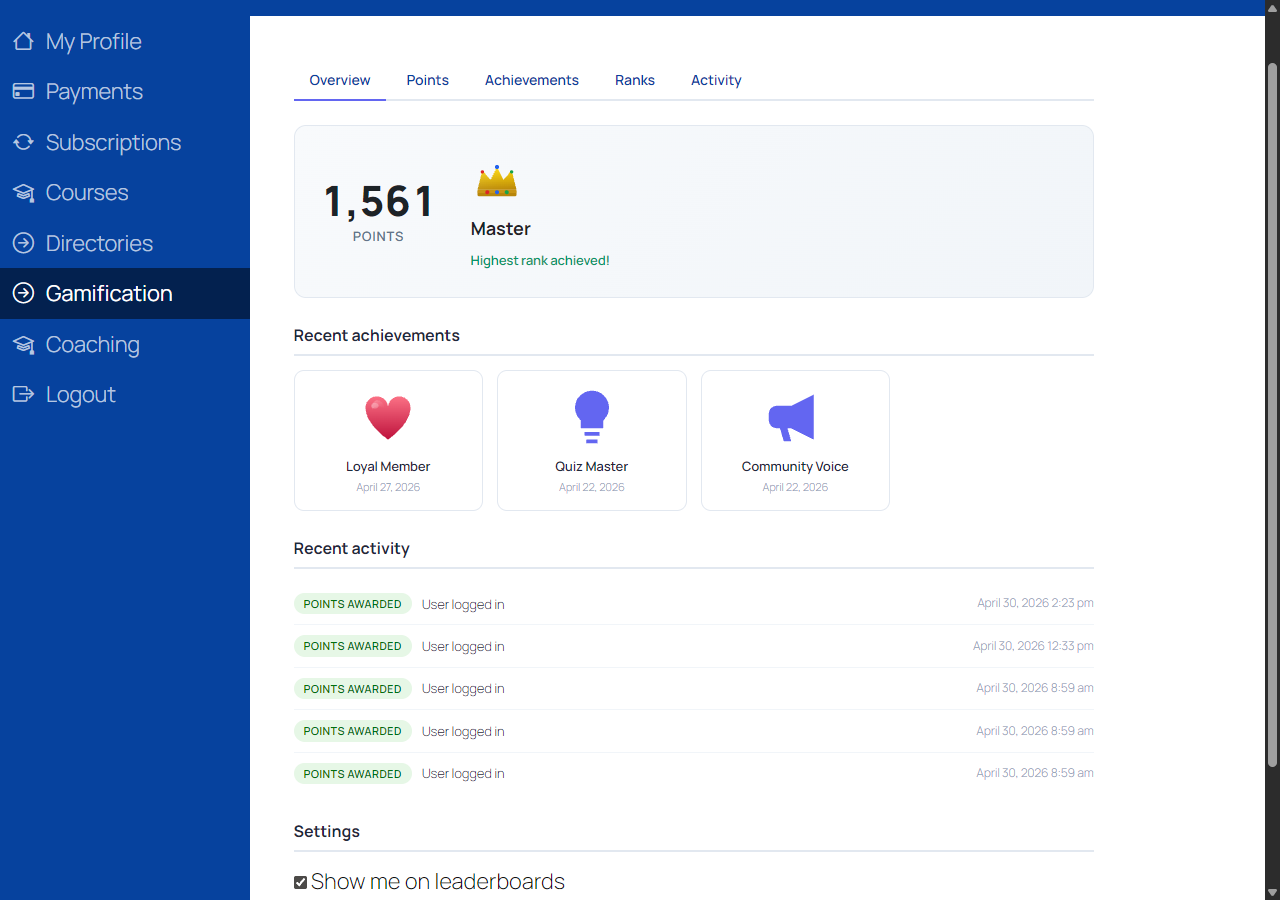
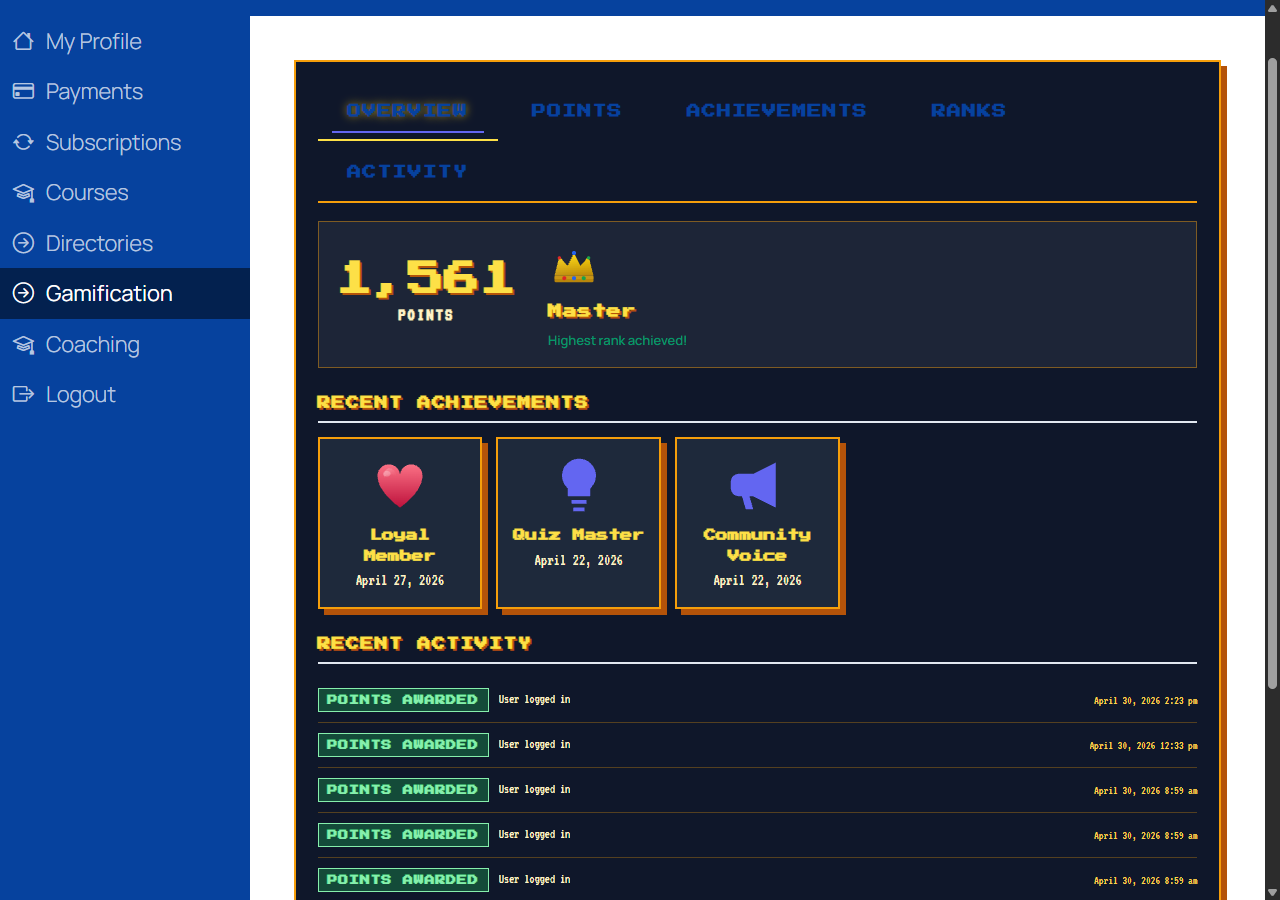
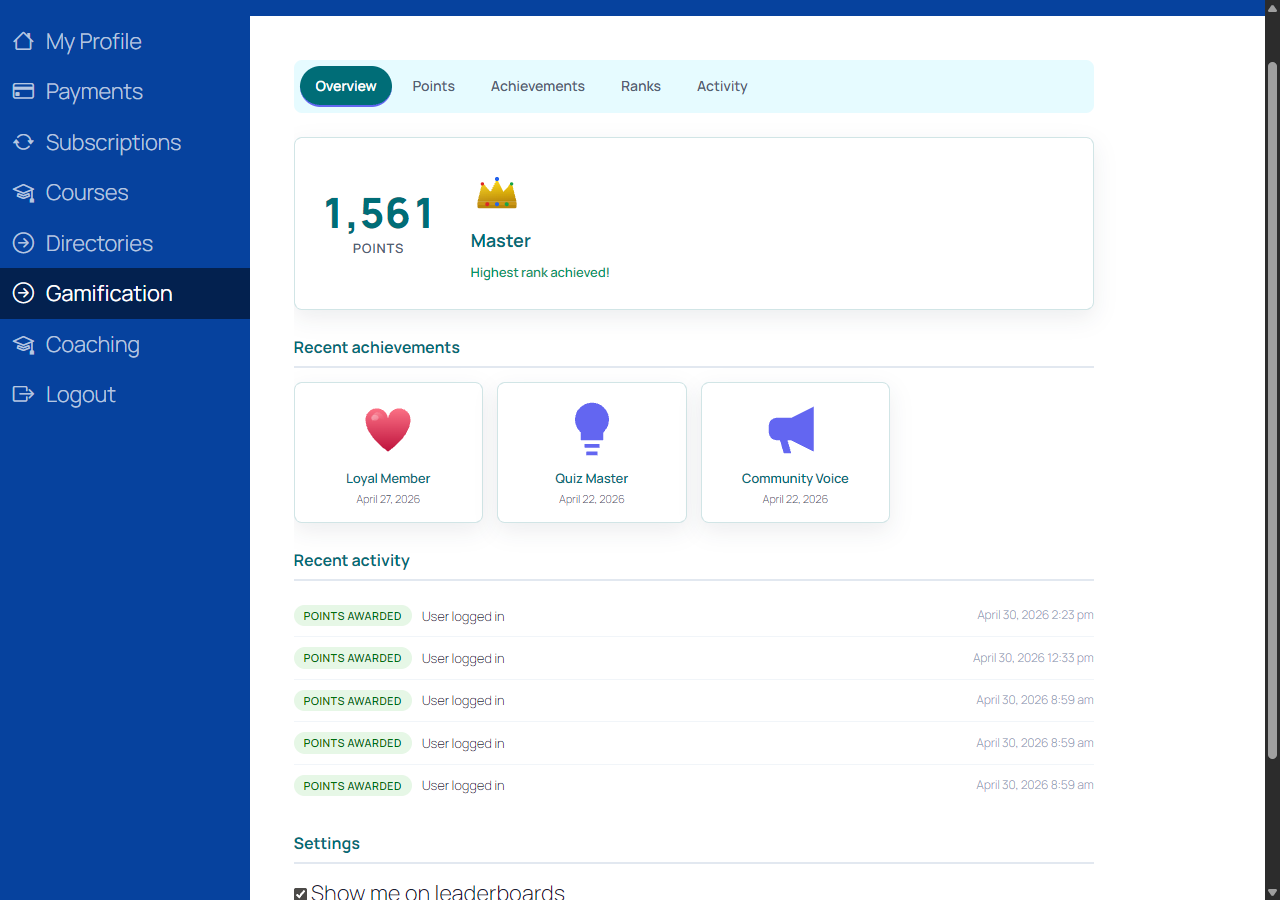
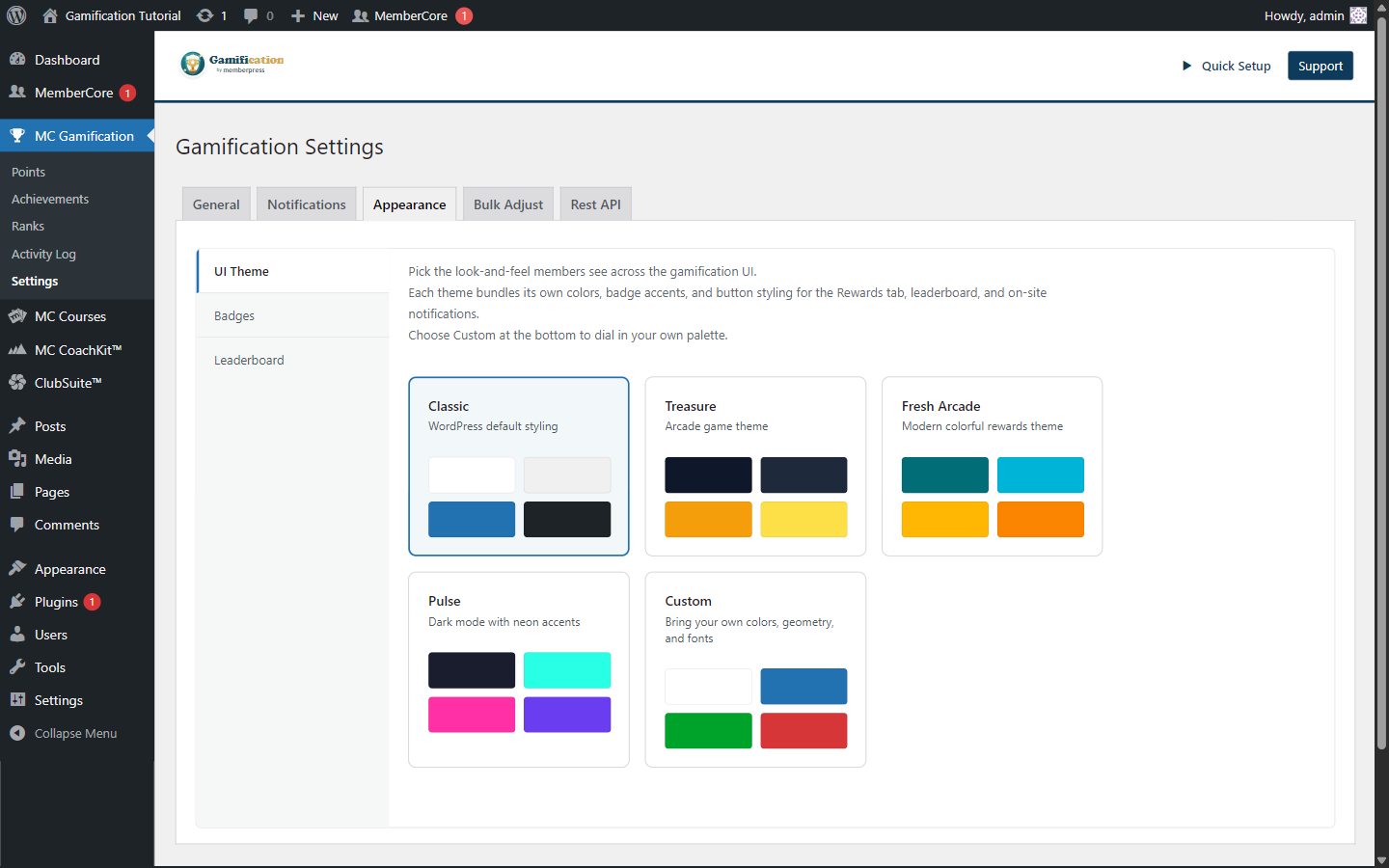
| Theme | Use it when | Surfaces covered |
|---|---|---|
| Classic | You want the default WordPress-style interface. | Base admin and member-facing styling. |
| Treasure | You want a darker arcade game look with gold reward accents. | Admin, editor controls, notifications, panel, and shortcodes. |
| Fresh Arcade | You want a brighter rewards look with teal, cyan, gold, and orange accents. | Admin, editor controls, notifications, panel, and shortcodes. |
| Pulse | You want a dark mode interface with neon cyan, pink, and violet accents. | Admin, editor controls, notifications, panel, and shortcodes. |
| Custom | You want to bring your own brand: 8 colors, three numeric sliders (corner radius 0-24px, shadow intensity 0-100, spacing scale 0.6×-1.4×), and heading and body fonts picked from four bundled system stacks (System Sans, Serif, Mono, Rounded). Defaults match Classic, so an unedited Custom theme looks identical to Classic. | Member-facing only: panel, leaderboard, shortcodes, and notifications. Admin chrome and the block editor stay Classic regardless. |
Customizing the Custom theme
Pick Custom and an inline editor appears right under the theme picker. Choose colors with the WordPress color picker, drag the corner radius, shadow, and spacing sliders to taste, and pick heading and body fonts from four bundled system stacks. Every label has a tooltip telling you what that value affects, and a side-by-side live preview updates instantly so you can see the change before you save.
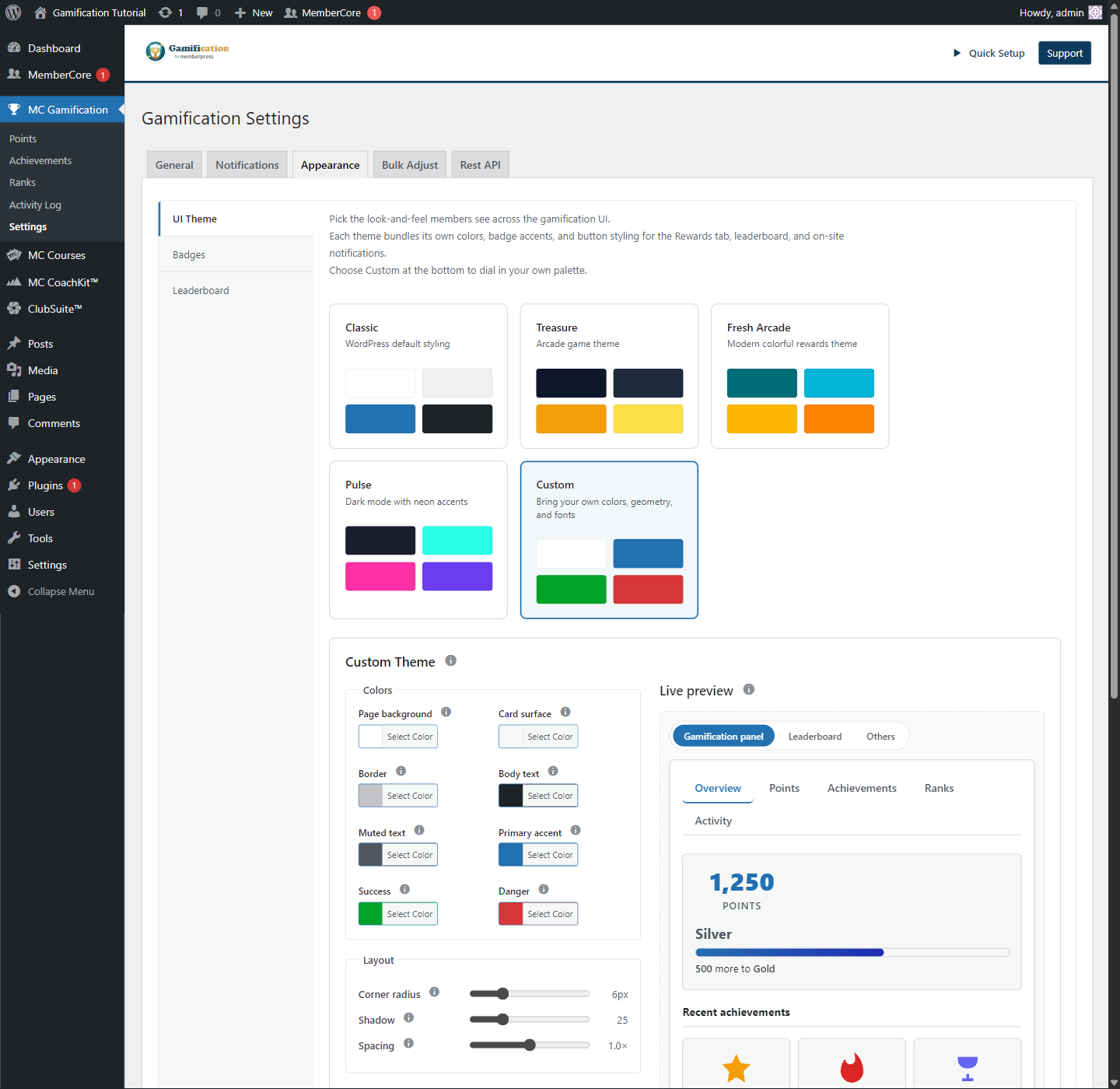
The live preview is itself tabbed, so you can check the styling on each surface the Custom theme covers without leaving the settings screen:
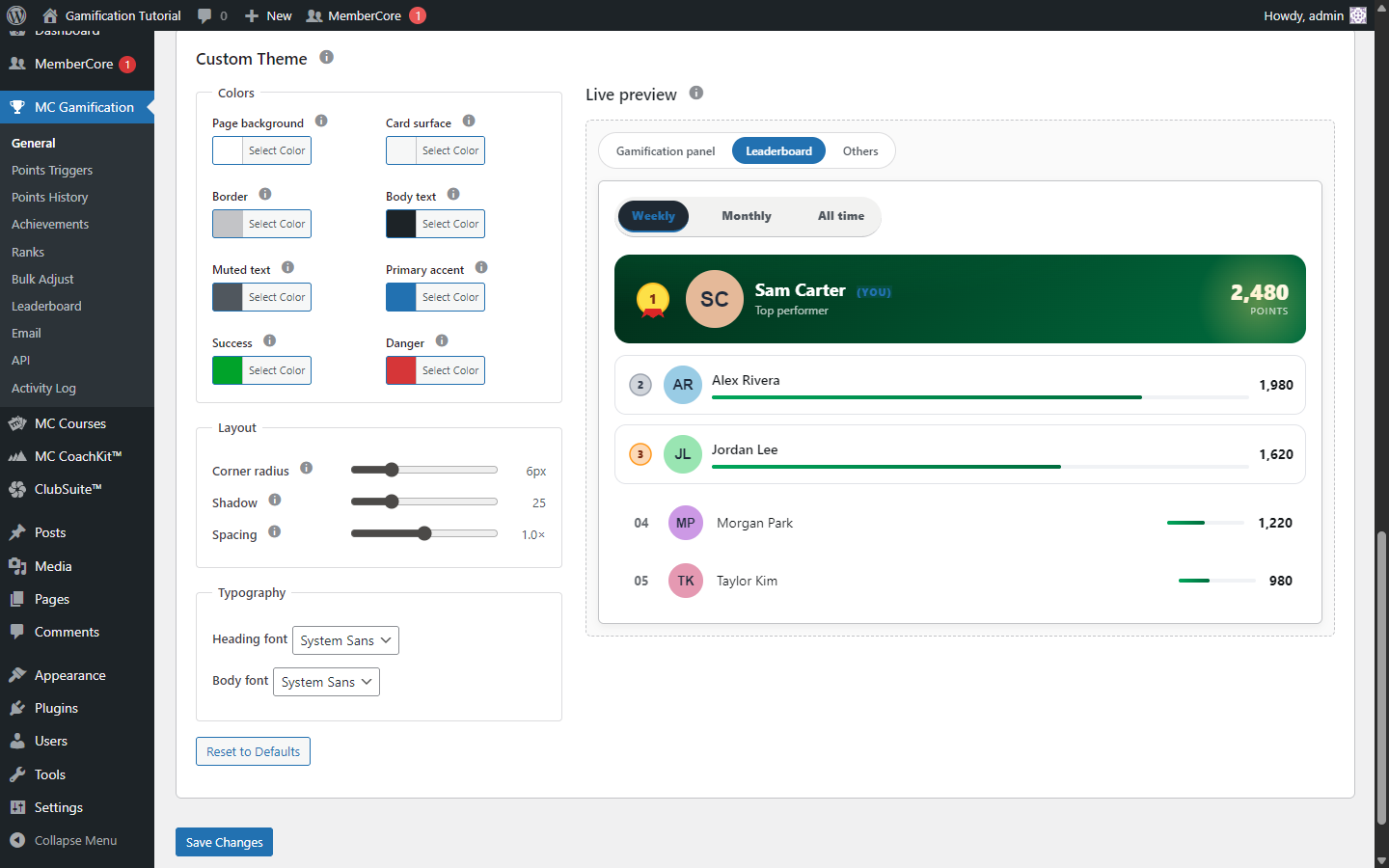
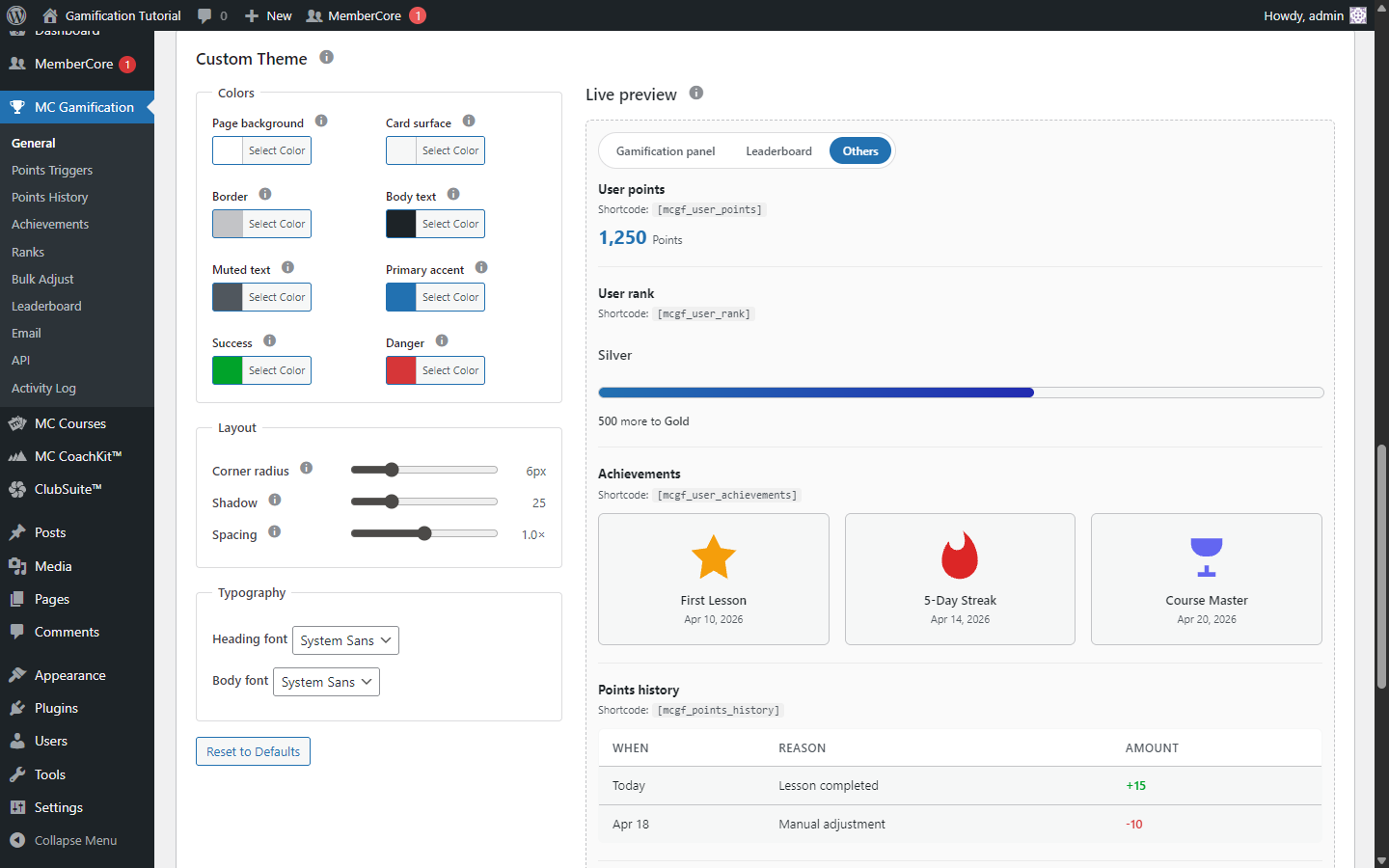
Click Reset to Defaults at the bottom of the editor to put the Classic-like baseline back, without touching your saved settings until you actually click Save Changes. Your saved values survive theme toggles too: flip to Pulse, save, switch back, and your Custom palette is right where you left it.
Points History
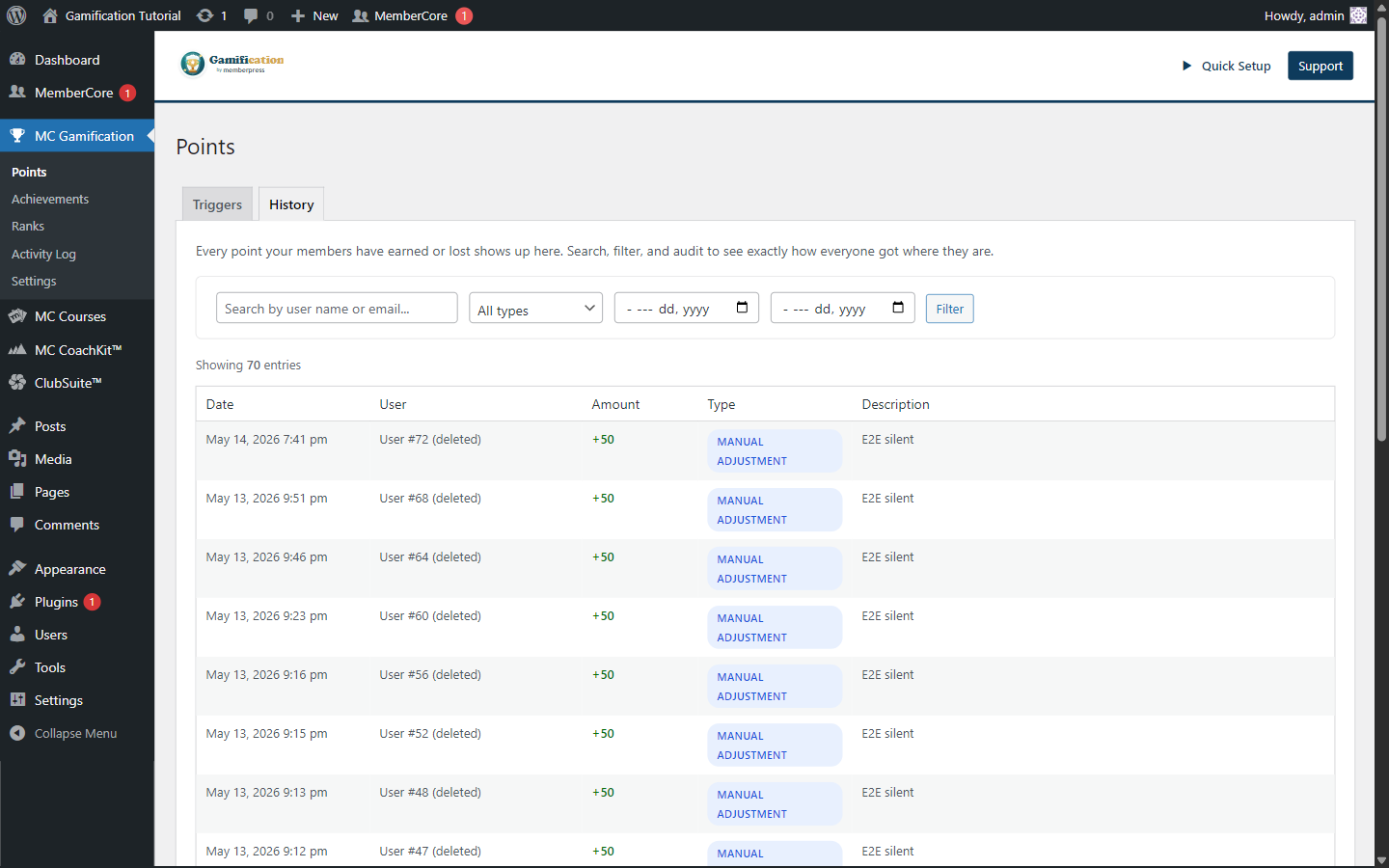
Points are the core currency of the system. Every reward starts life as a point award: members earn them when triggers fire, and the running balance feeds into rank promotions and most achievement requirements. The Points submenu lives under MC Gamification in the sidebar and has two inner tabs: Triggers (the earning rules grouped by addon) and History (a searchable, filterable transaction log of every point change). Use History to trace exactly how a member ended up with the balance they have.
Each row records the date, the user, the amount (positive for awards, negative for adjustments), the transaction type (awarded, manual adjustment, refund, and so on), and a description that names the trigger or admin action behind the change. Filters across the top let you narrow by user, type, or date range.
Achievements
Achievements are action-based. Each one is a badge a member earns by completing one or more specific actions on the site. Members can collect as many achievements as you publish, and each one is awarded once per member. Every badge can use a custom uploaded image or a bundled icon from the active set, see Badge Icon Sets.
How an achievement is defined
When you create or edit an achievement, you pick the triggers (the actions) the member has to complete and the count required for each. The plugin watches for those events and hands out the badge the moment the member clears every requirement on it.
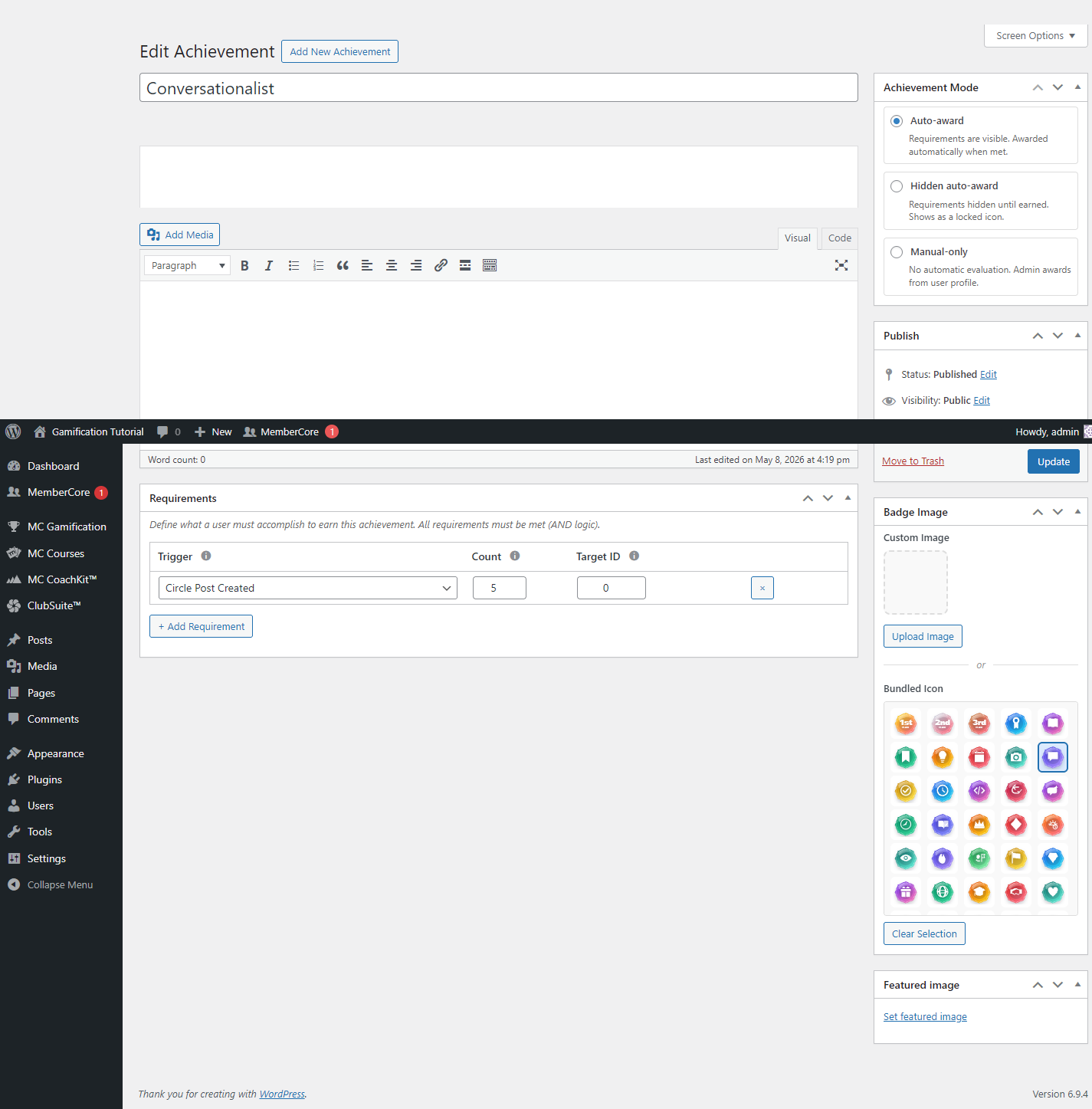
The trigger list updates itself automatically. It includes every trigger registered by MemberCore plus everything contributed by your active addons (Courses, Circles, Quizzes, CoachKit, and so on). Achievements that lean on an inactive addon stay listed but won’t fire until that addon comes back online.
Award modes
Every achievement runs in one of three modes, picked from the Achievement Mode panel on the edit screen:
- Auto-award. The plugin watches the triggers and grants the badge automatically once the requirements are met. The achievement and its requirements are visible to members up front so they know what they’re working toward.
- Hidden auto-award. Same automatic evaluation, but the achievement doesn’t show up on the public listing until the member earns it. Great for surprise badges that you don’t want to telegraph.
- Manual-only. The plugin doesn’t evaluate triggers at all. You hand the badge out yourself from a member’s user-edit screen. Best for offline events (a workshop attended, a milestone confirmed by staff).
Managing achievements
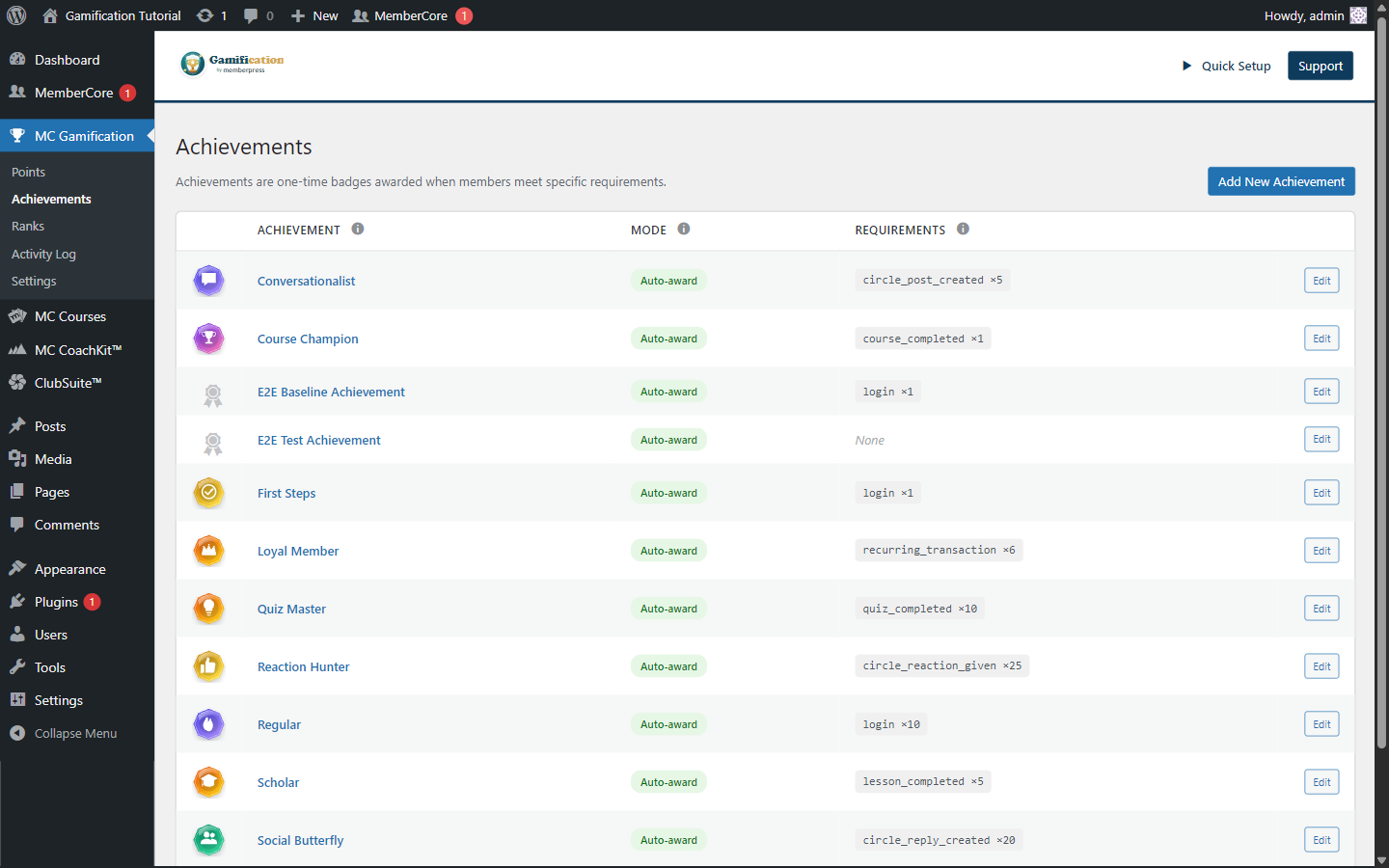
The Achievements page (its own submenu under MC Gamification) lists every achievement, the mode it is running in, and a summary of its requirements. Click Add New Achievement to build a badge from scratch, hit Edit on a row to tweak an existing one, or jump over to Bulk Adjust when you need to award or revoke achievements for a lot of members at once.
Ranks
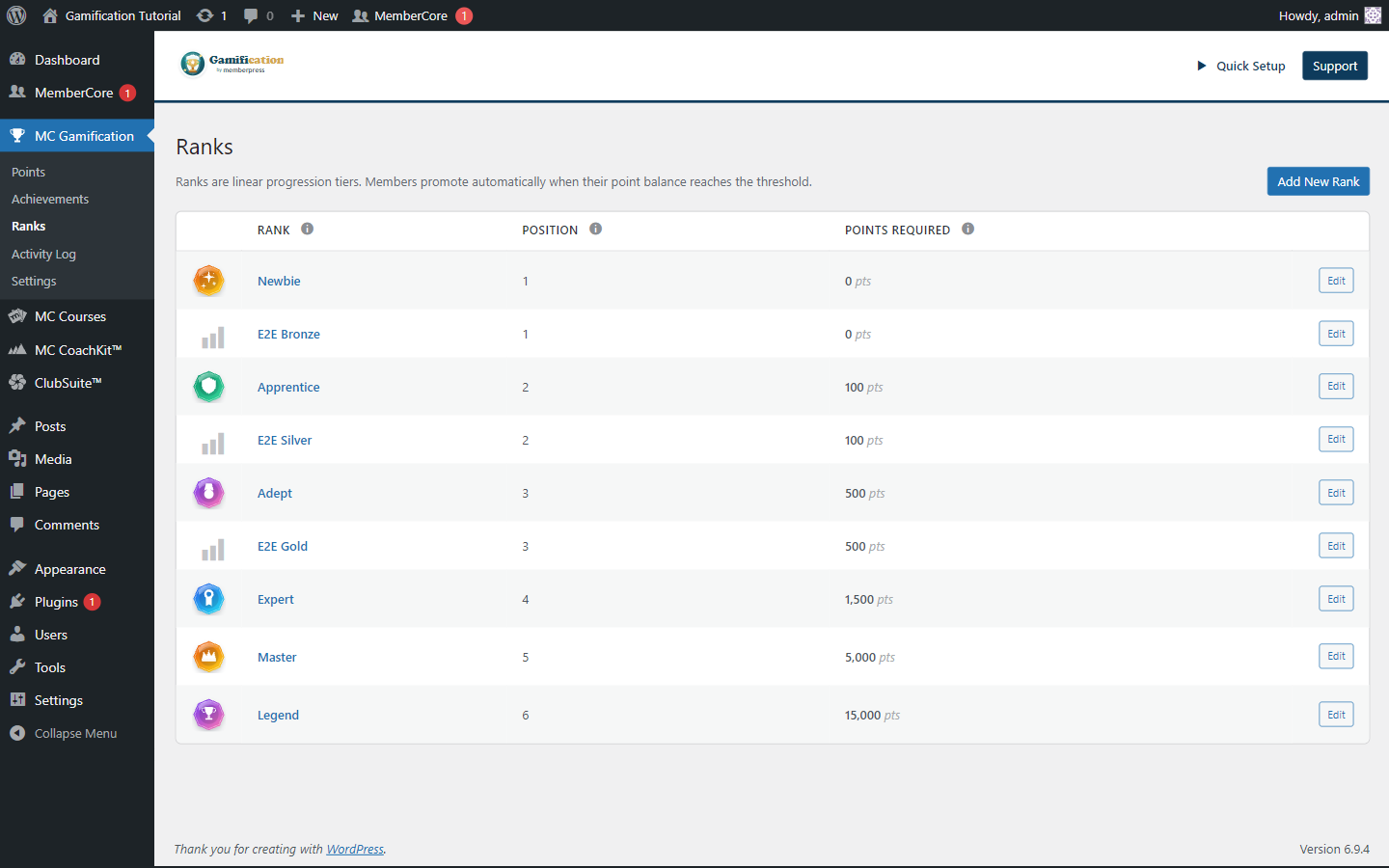
Ranks are points-threshold-based. Each rank has a points required value, and a member is promoted to that rank the moment their total point balance crosses it. Set the Master rank to 5,000 points and any member who hits 5,000 lifetime points becomes a Master, just like that.
One rank at a time, promotion only
A member always holds exactly one rank, the highest one their balance qualifies for. Promotions kick in the instant the balance crosses a threshold. The rank sticks even if their balance later drops below it (after a manual deduction or admin adjustment, say), so ranks only ever go up. No demotion, ever.
Managing ranks
The Ranks page (its own submenu under MC Gamification) shows each rank with its position on the ladder and the points required to reach it. Click Add New Rank to add another tier, or hit Edit on a row to tweak a rank’s name, image, or points threshold. Quick Setup ships with two preset ladders (Game and Military) you can use as a head start on a fresh install.
Bulk Adjust
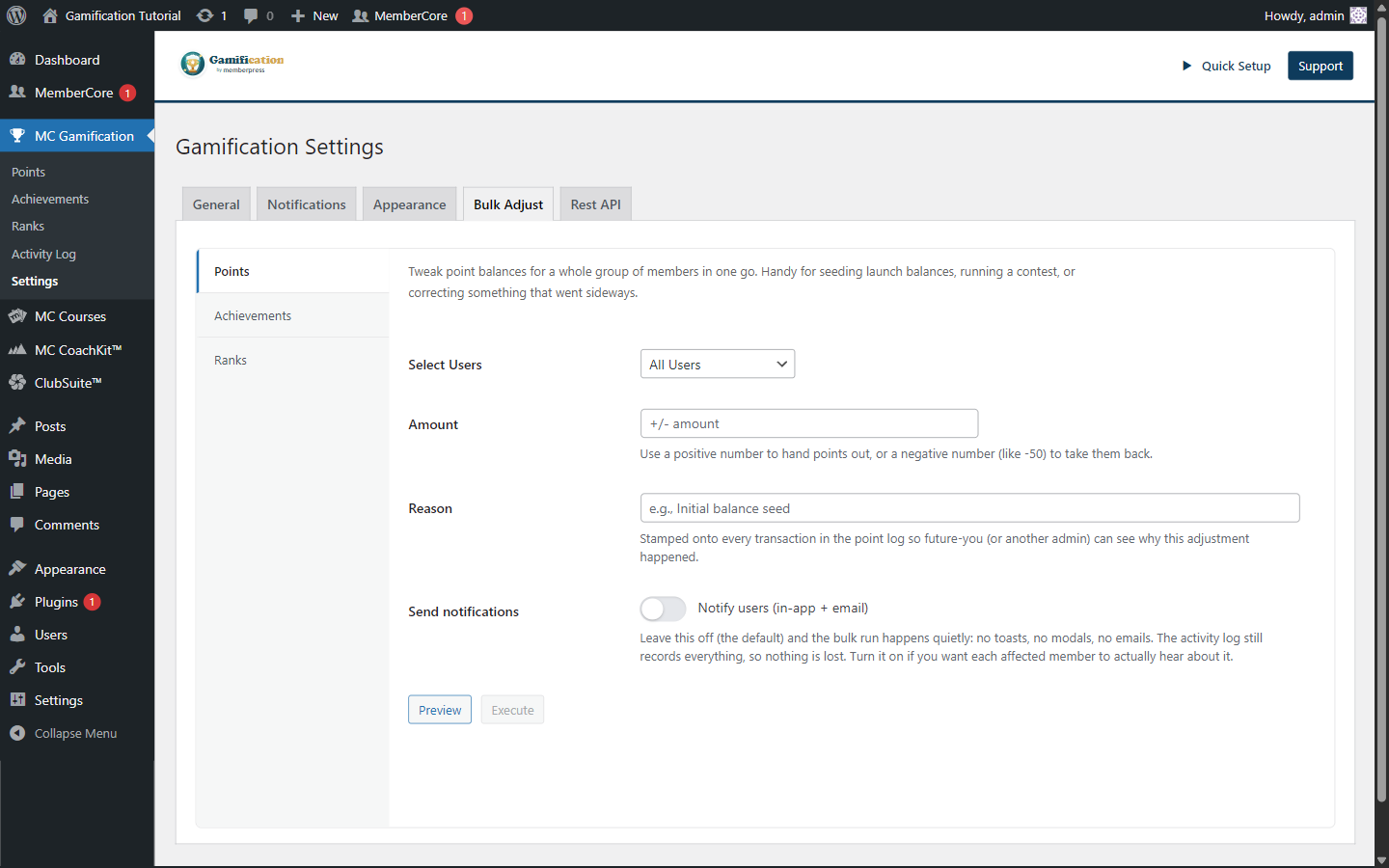
Bulk Adjust is the operations console for when you need to do something to a lot of members at once. It lives at MC Gamification > Settings > Bulk Adjust, an inner tab on the Settings page with three vertical sub-tabs that mirror the three pillars: Points, Achievements, and Ranks. Reach for it when you’re seeding a community that’s migrating to gamification, fixing outliers after a misconfigured trigger, or handing a campaign reward to a cohort defined by role or membership.
Every operation follows the same flow: pick the audience (All Users, by WordPress role, or by MemberCore membership), choose what to do, optionally toggle Notify users so members get the in-app and email notifications, click Preview to see how many people will be affected, then hit Execute. Turn notifications off and the run is silent for users while the activity log still captures every change, perfect for fixing things up without spamming the audience.
Points
Adjust point balances for the selected audience. Enter a positive amount to award (say, +100) or a negative amount to deduct. The reason you provide is recorded against every transaction in the points log, so you can dig the bulk run back up later by user or date range. Handy for migration seeding, campaign rewards, or correcting an over-grant from a misconfigured trigger.
Achievements
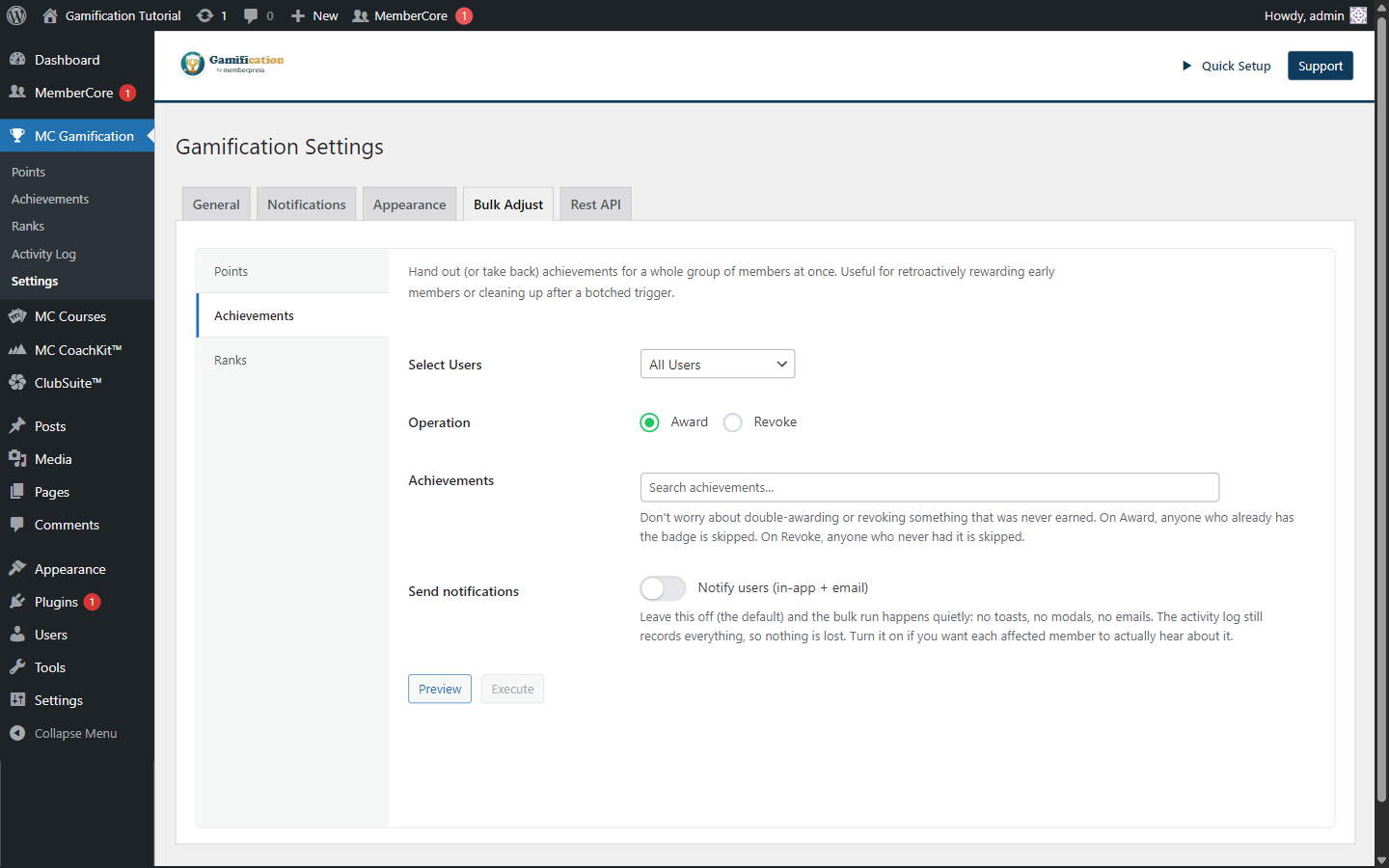
Award or revoke one or more achievements for the selected audience. Already-earned ones are skipped on Award and not-earned ones are skipped on Revoke, so it’s safe to re-run an Award, it’ll only catch new qualifiers. This is the right tool when you add a new achievement that should retroactively credit existing members, or when you need to clear out a badge that was granted by mistake.
Ranks
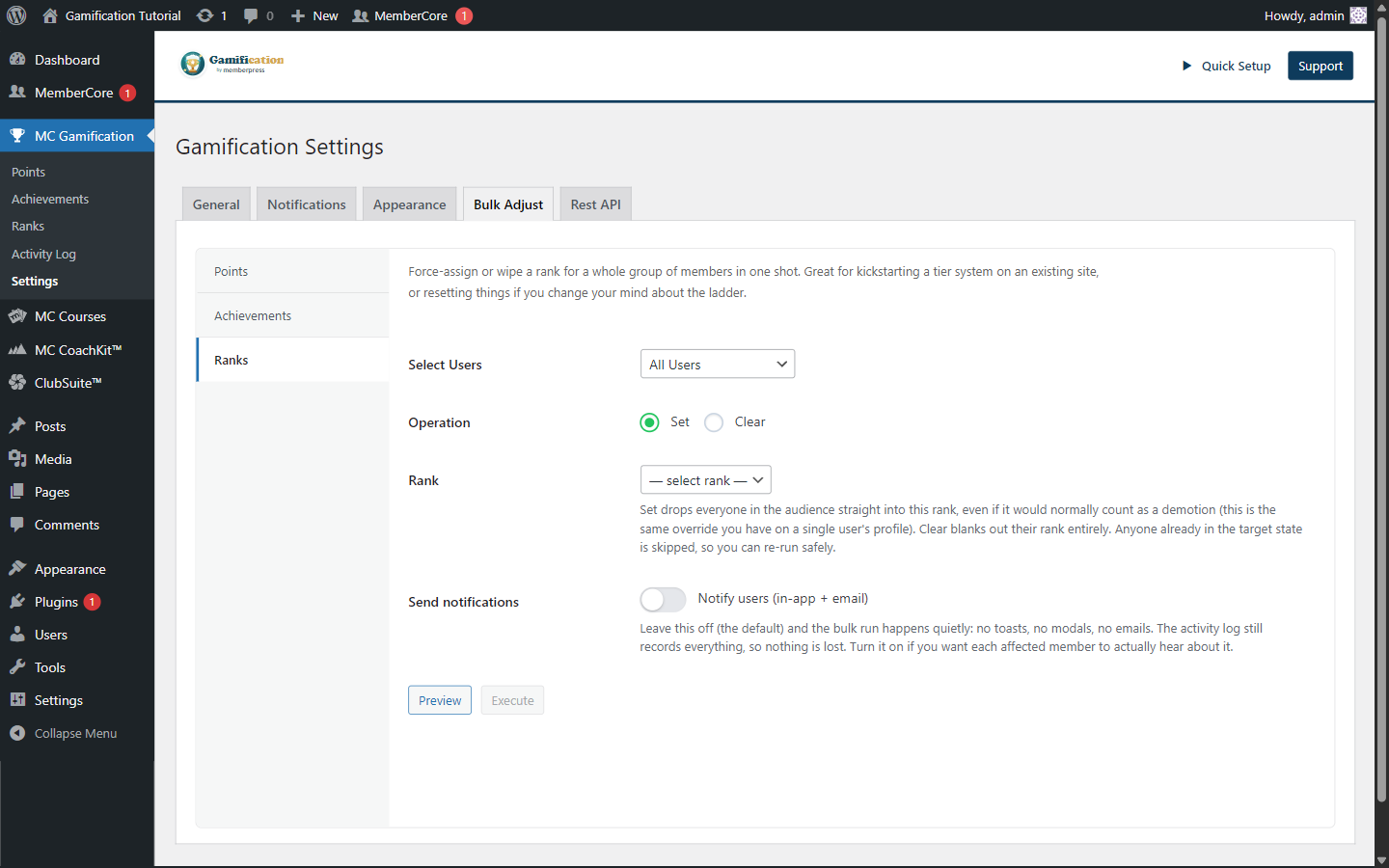
Set the audience to a specific rank or clear their rank meta entirely. Set mirrors the per-user rank override and bypasses the no-demotion rule, so you can move members up or down to a fixed tier, handy for community resets or seeding launch cohorts. Clear resets rank meta to zero so the next point-balance change recalculates from scratch. Anyone already in the target state is skipped.
Notifications
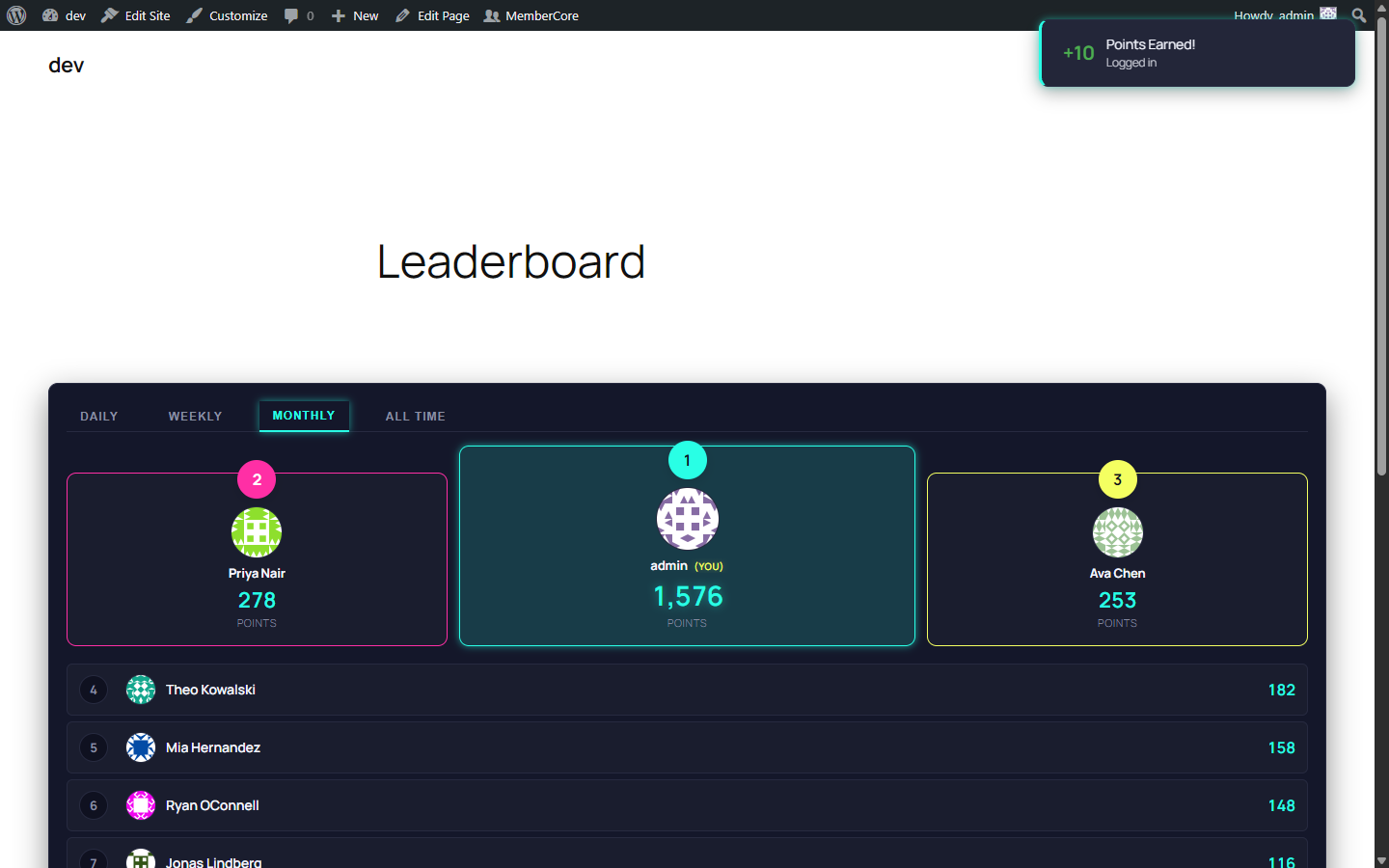
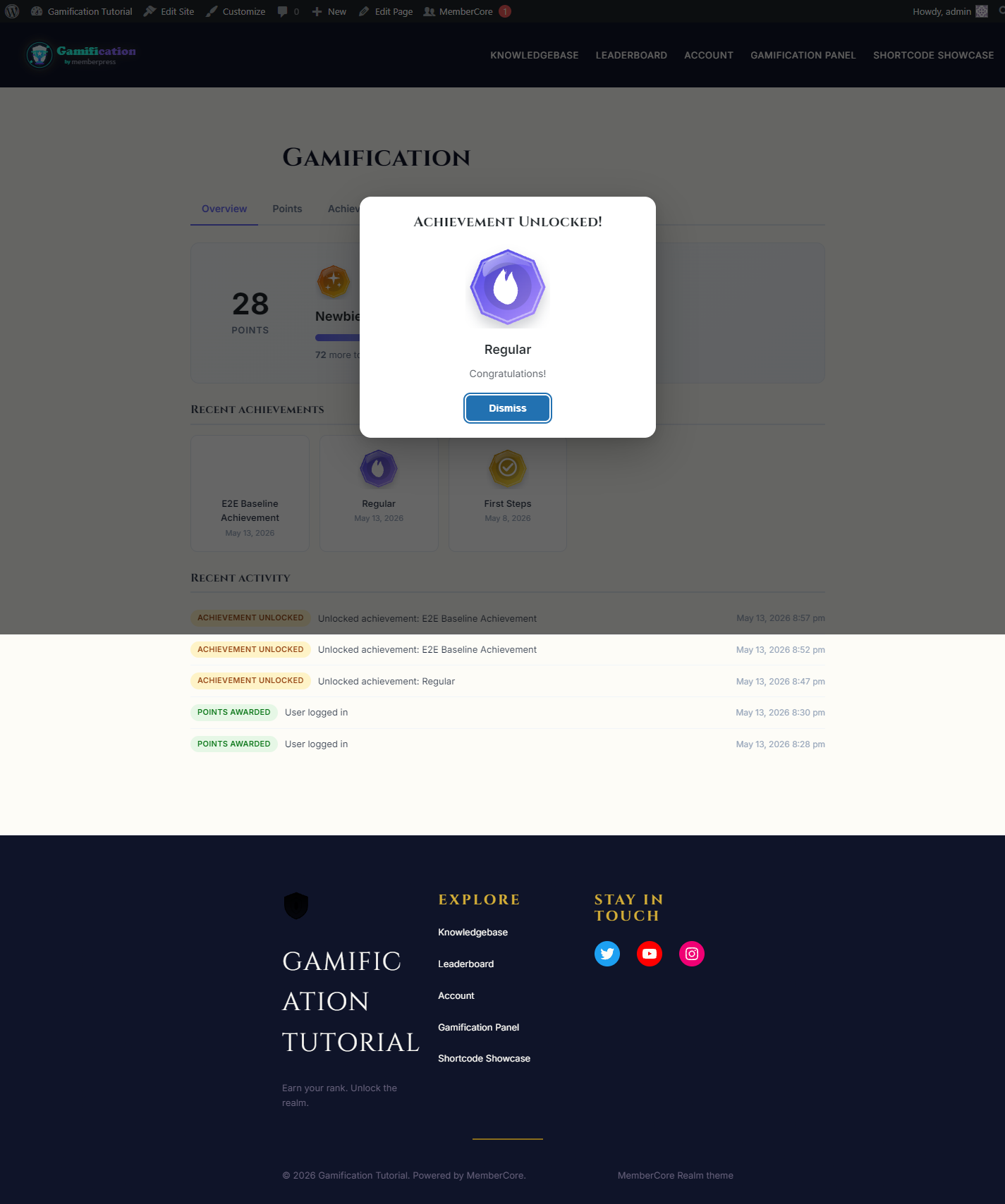
Toast pop-ups for points (top right, auto-dismissing). Centered modals for achievement unlocks and rank promotions. Multiple notifications queue up and play one after the other. You can switch the whole system off or change how long the toasts hang around.
How notifications fire
The plugin queues notifications on the server the moment a reward is granted, then renders them on the member’s next front-end page load and clears the queue. So a member who earns points during a background sync, an admin Bulk Adjust, or a webhook callback still gets the celebration the next time they visit, no matter where they land.
Admin settings
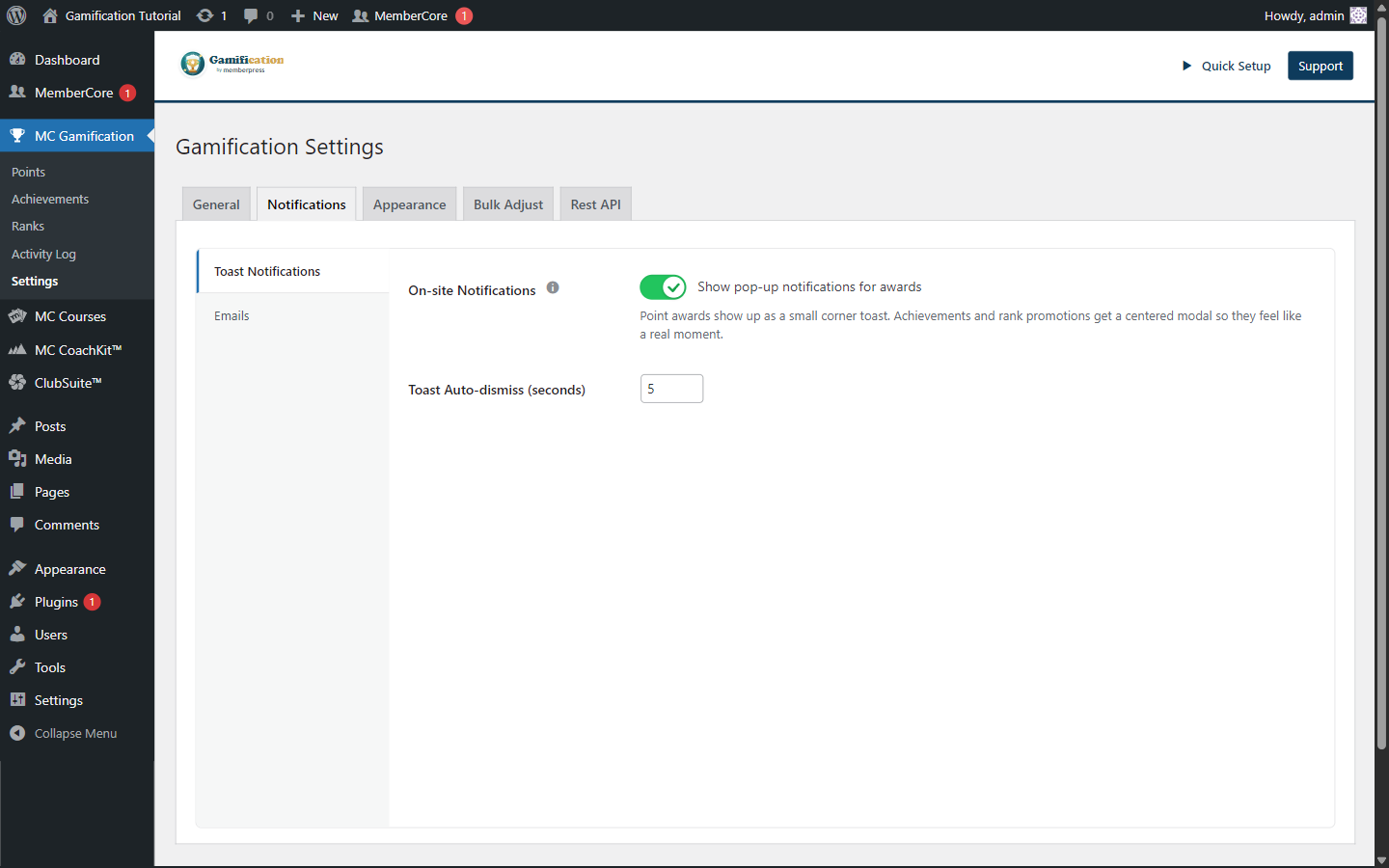
Two settings live on MC Gamification > Settings > Notifications > Toast Notifications and control the whole system:
- Notifications. The master toggle. Turn it off to silence every on-site celebration without touching the underlying point, achievement, or rank pipeline. Members keep earning rewards in the background, the leaderboard and panel stay accurate, but no toasts or modals fire.
- Toast Auto-dismiss (seconds). Default is 5. Bump it up if your audience needs more time to read the toast before it fades, or drop it if you want celebrations to feel snappier. Modals don’t auto-dismiss, they always wait for a click, the dismiss button, or the Escape key.
What members see
Point awards animate in as a small toast in the top-right corner. Achievement unlocks and rank promotions take over the page with a centered modal that shows the badge or rank image plus a Dismiss button. When several notifications stack up between visits (a single trigger that grants points and unlocks a badge in the same call, for example), they play one after the other, toasts first, then modals.
Email notifications are the off-site companion to the on-site celebrations above. When a member earns an achievement or gets promoted to a new rank, the plugin can fire a celebratory email to the member, an alert to the admin, or both. Everything is off by default, so nothing leaves the site until you opt in.
Where to find it
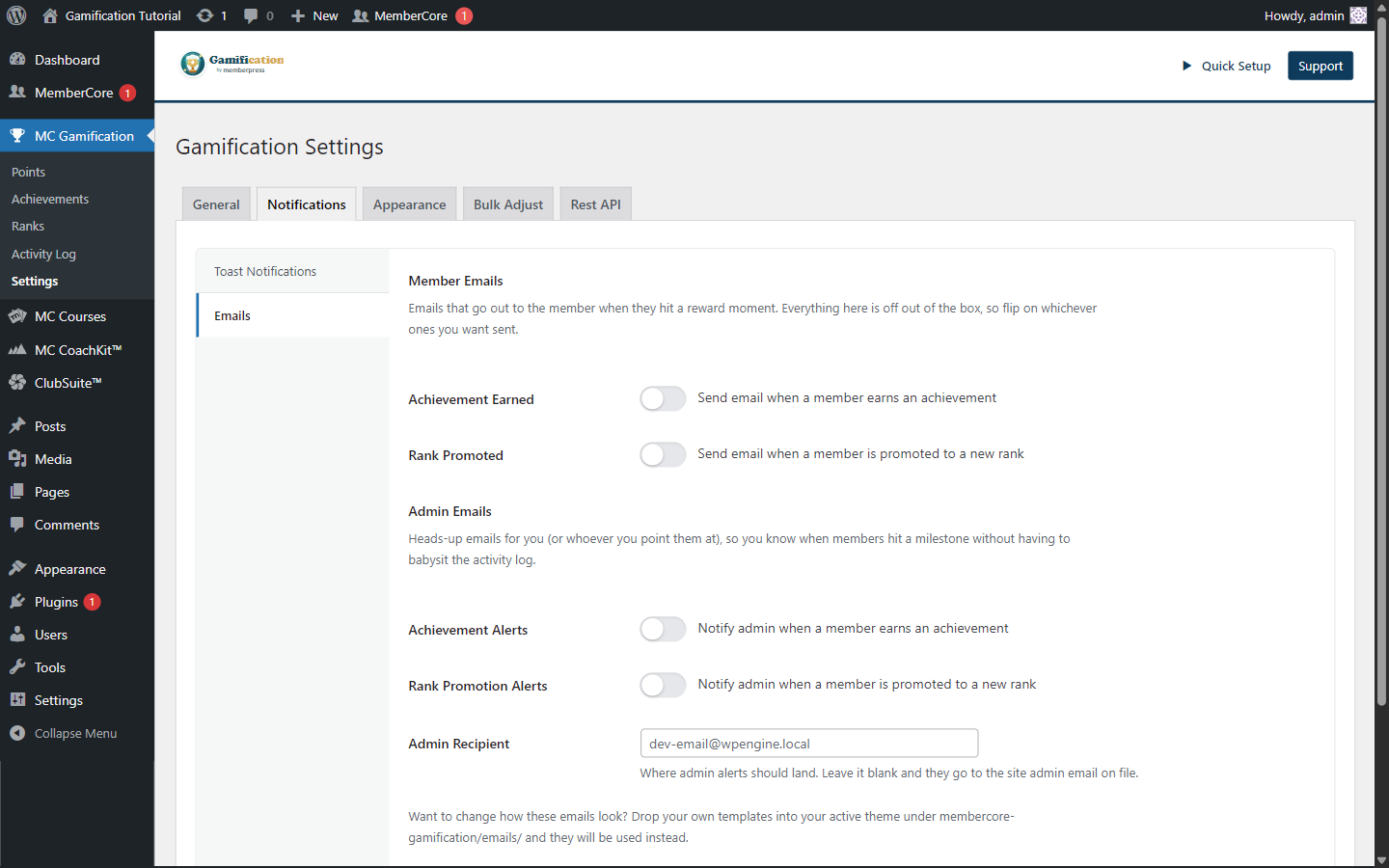
Head to MC Gamification › Settings › Notifications › Emails. The Emails panel is split into Member Emails and Admin Emails.
Member emails
These go straight to the member’s WordPress account email when the event fires.
- Achievement Earned. Sent when a member unlocks an achievement (in any mode, auto, manual, or hidden). The email includes the achievement title and the badge image.
- Rank Promoted. Sent when a member crosses a rank threshold and moves up to a higher rank.
Admin emails
These are milestone alerts, a way for site owners to see when something noteworthy happens without having to crack open the dashboard.
- Achievement Alerts. One email per member achievement unlock. Great for low-volume sites where each unlock matters. On busy sites it can get noisy, so leave it off unless you’ve got downstream automation listening.
- Rank Promotion Alerts. One email per rank promotion.
- Admin Recipient. An optional email address for these admin alerts. Leave it blank and the plugin falls back to the WordPress site admin email (
get_option('admin_email')).
Templates
Every email has an HTML template that ships with the plugin. To override one, copy the template file from app/views/emails/ in the plugin directory into a membercore-gamification/emails/ folder inside your active theme. The override picks up on the very next send, no deploy or cache flush needed, since WordPress’s locate_template() spots new files right away.
Behavior and gotchas
- Synchronous send. Emails go out as part of the same request that triggered the event (the HTTP request that awarded the achievement, for example). That’s fine for normal traffic, but if you bulk-award a thousand achievements at once through the API, the request will hold open while WordPress hands those messages off to your MTA.
- No de-duplication. One email per event. If the same achievement is granted twice (an unrevoke and re-grant cycle, say), two emails go out.
- Silent admin operations bypass emails. The Bulk Adjust tool and any admin action that passes
$silent = trueon the underlying hooks suppress both the on-site notifications and these emails. Routine point cleanups won’t flood anyone’s inbox. - Deliverability is on your site. The plugin uses
wp_mail(). If your site doesn’t have a transactional email provider hooked up (SendGrid, Postmark, an SMTP plugin), expect the usual WordPress shared-host deliverability headaches.
Activity Log
The Activity Log is the audit trail for everything the plugin does to a member’s gamification record. Whenever points move, an achievement changes state, or a rank gets promoted, a row lands in the log with the user, the action, a human-readable description, and the timestamp.
Where to find it
Head to MC Gamification › Activity Log. The page is a single searchable, filterable, paginated table.
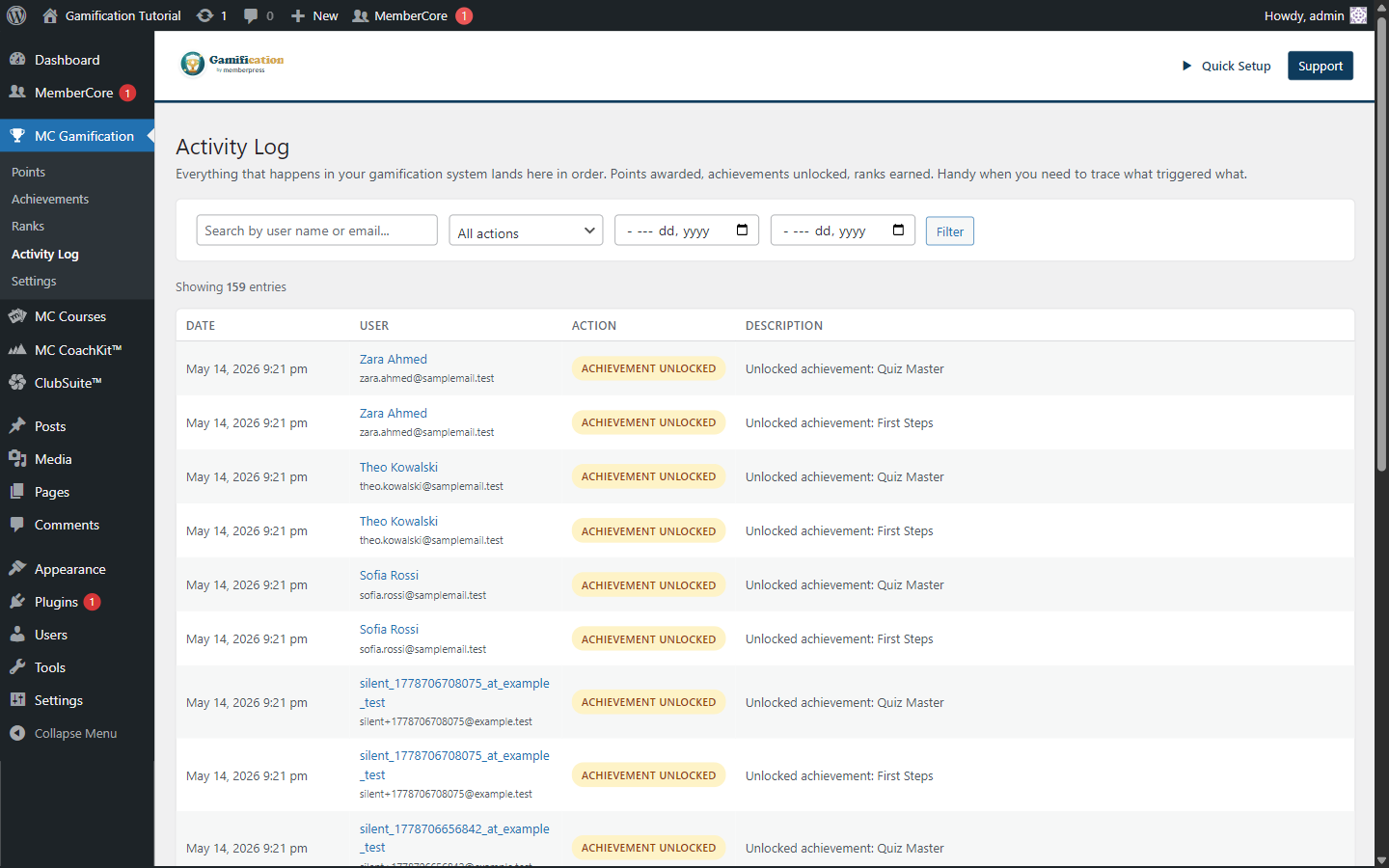
What gets logged
Six action types end up in here. Each one shows up as a colored badge in the Action column.
| Action | Fired when |
|---|---|
| Points Awarded | Any positive points award (trigger fire, API call, signup reward, manual grant). |
| Points Deducted | Any negative points movement (redemption, API deduct call). |
| Manual Adjustment | An admin or token uses the Bulk Adjust tool or the /points/adjust endpoint to change a balance with a reason. |
| Achievement Unlocked | A member earns an achievement (auto, hidden, or manual mode). |
| Achievement Revoked | An admin removes a previously earned achievement. |
| Rank Promoted | A member crosses a rank threshold and moves to a higher rank. |
Filters
- Search. Matches the user’s display name or email (case-insensitive, partial match).
- Action. A drop-down with the six action types above plus All actions.
- Date range. From / To date pickers. Leave either side empty to make the range one-sided.
- Filter / Clear. Filters apply when you click Filter. The Clear link only shows up once at least one filter is set, and it resets every input back to default.
Reading a row
- Date renders in the site’s WordPress date and time format. Timestamps are stored as UTC and shown in the site timezone.
- User shows display name plus email and links to that user’s profile (it jumps you to the gamification activity panel on the profile screen). If the underlying WordPress user has been deleted, the cell shows
User #<id> (deleted)and the row sticks around. - Action is the colored badge.
- Description is the contextual reason: trigger key, manual reason text, achievement title, rank name, and so on. Empty descriptions render as a dash.
Behavior and gotchas
- No retention or auto-purge. Every log row sticks around indefinitely. On busy sites the table will grow, so if storage starts to bite, prune it with WP-CLI or SQL on whatever schedule fits.
- Read-only UI. The admin screen doesn’t expose delete or export. You’ll need direct database access for either.
- Source of truth for incident review. The log is what the plugin writes during real award, promote, and revoke calls. If a row is missing, the underlying engine call almost certainly never happened, which makes the log invaluable for debugging “why didn’t I get points for X?” reports.
Leaderboard
The Leaderboard ranks members by points and surfaces healthy competition without ever exposing private data. It ships as a single component with four timeframe tabs (Daily, Weekly, Monthly, All Time), five display styles (Cards, Classic Podium, Modern, Clean Performance Table, and Progress Race), and a privacy model that lets you decide whether members are visible by default or have to opt in.
Behind the scenes, the same component drives three surfaces: the MC Gamification > Settings > Appearance > Leaderboard tab where you set global defaults, the Leaderboard Gutenberg block (and its matching [mcgf_leaderboard] shortcode) you can drop into any post or page, and the dedicated Leaderboard page that Quick Setup creates on first install.
Admin settings
The Leaderboard tab controls the site-wide defaults: which tabs are visible, which one is selected by default, the display style, the privacy model (Opt-out or Opt-in), the display name format, and how many rows show per page. Block and shortcode placements inherit these defaults, but you can override any of them on a per-instance basis.
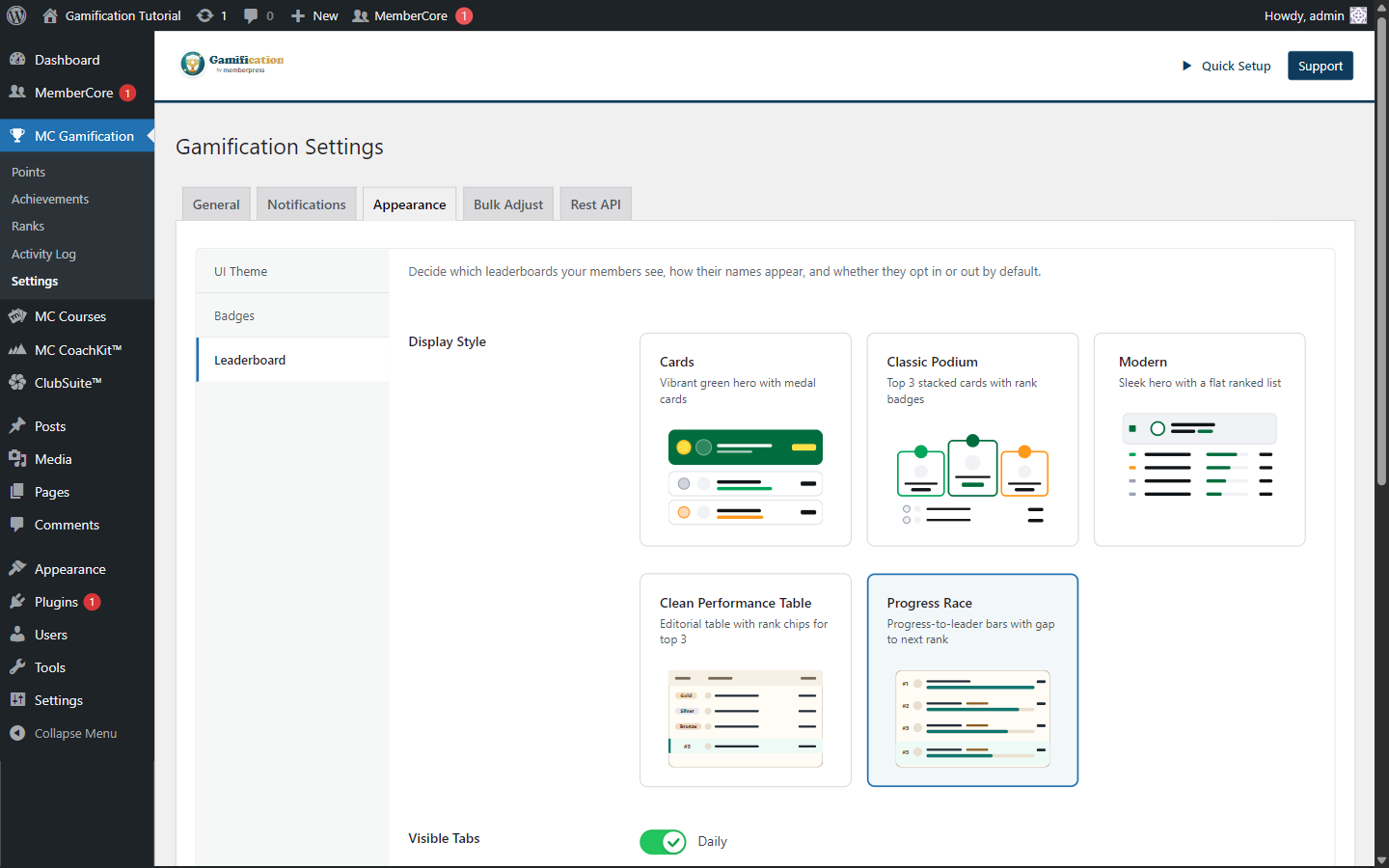
Display styles
The picker shows mini SVG previews for all five layouts. Cards is the default, but every other style is just one click away and can be set globally or on individual block placements.
| Style | What it looks like |
|---|---|
| Cards (default) | Vibrant green hero strip with medal-style cards for the top performers. |
| Classic Podium | Top 3 stacked podium cards with rank badges, followed by a flat list of the rest. |
| Modern | Soft gradient hero followed by a sleek, ranked list. |
| Clean Performance Table | Editorial table with Gold / Silver / Bronze chips for the top three and a highlighted current-user row. |
| Progress Race | Progress-to-leader bars showing each member’s gap to the rank above them. |
Block in the editor
The Leaderboard block (look in the Gamification category in the inserter) renders the live leaderboard inside the editor via ServerSideRender, so what you see while editing is what visitors will see on the front end. Inspector controls expose the same options as the global settings: visible tabs, default tab, display style, course restriction, and privacy controls. Override any of them per placement.
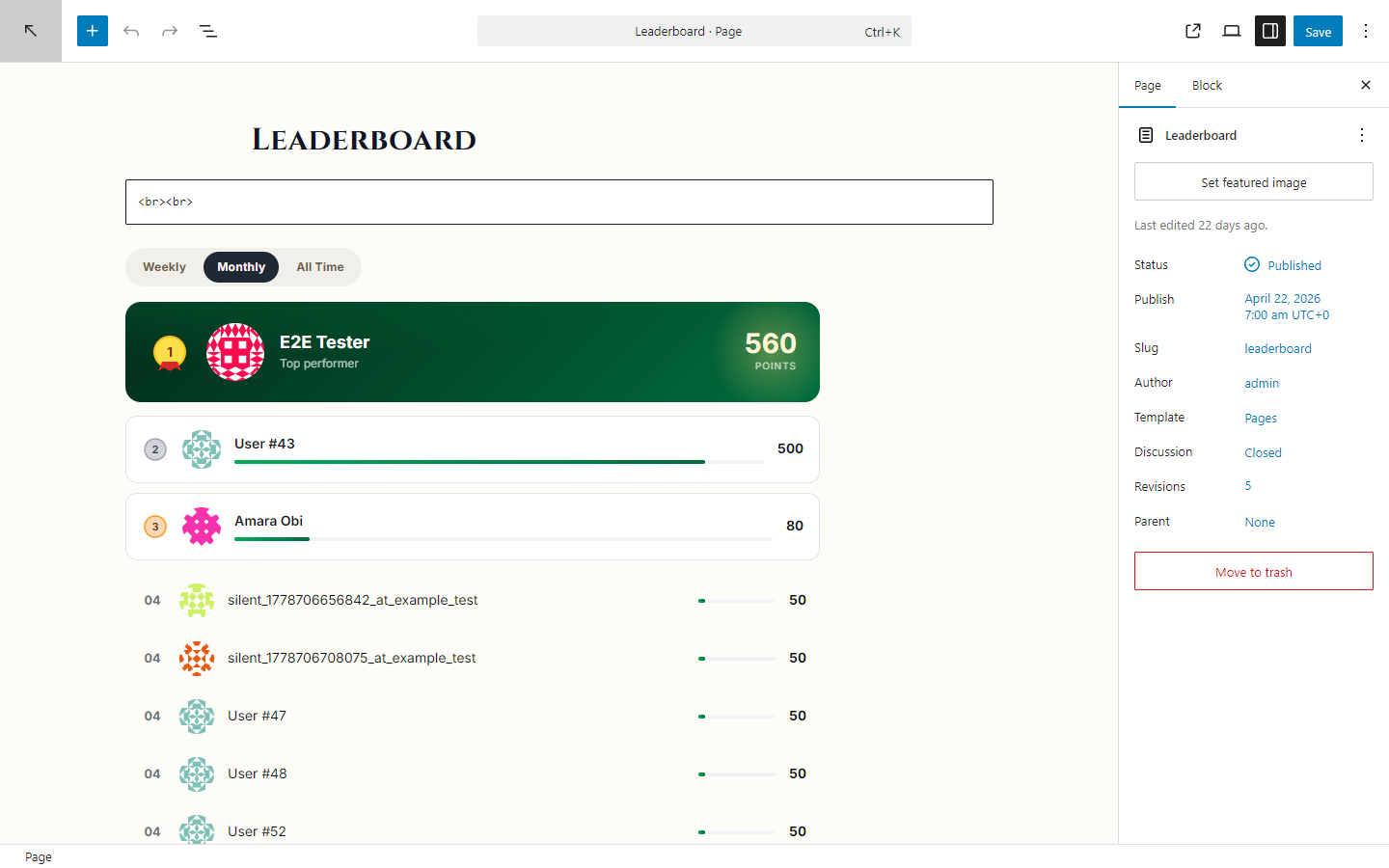
Frontend page
Quick Setup ships a ready-made Leaderboard page (slug /leaderboard/) that’s nothing but the Leaderboard block. The block fills the content column, picks up the active theme, and inherits whatever defaults you set in the admin tab. Members can opt in or out of being listed from their account-page Overview tab no matter what site-wide privacy model is in effect.
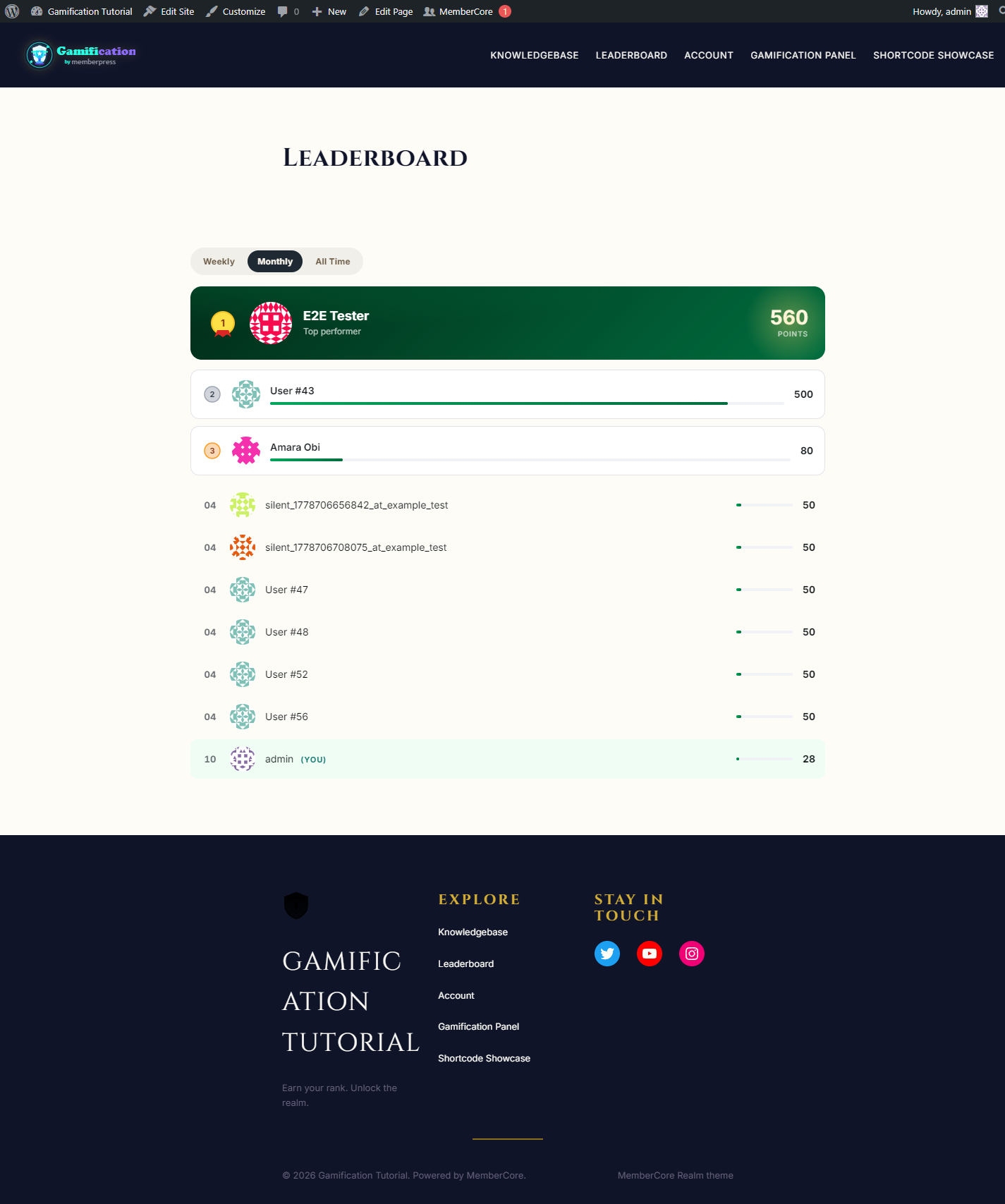
Gamification Panel
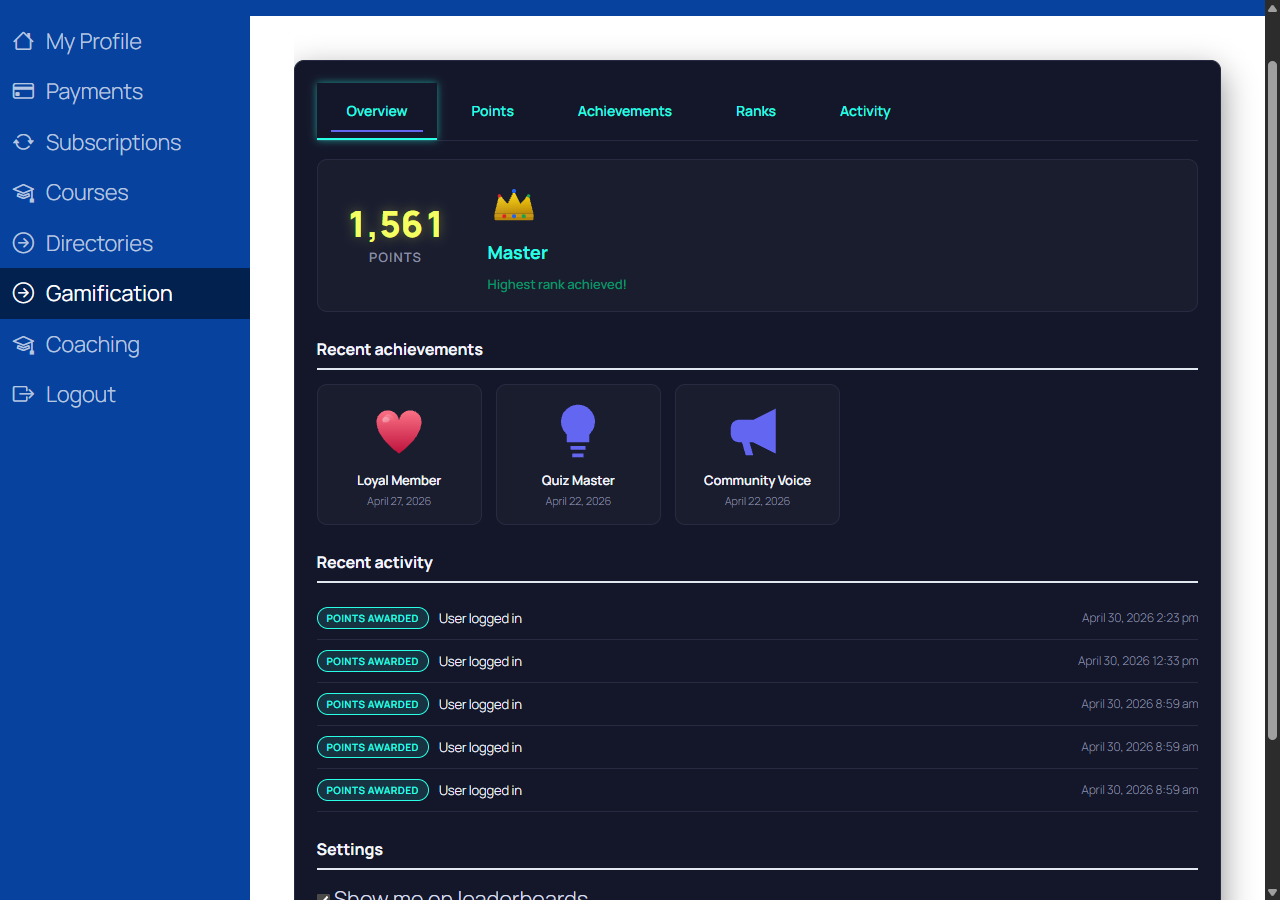
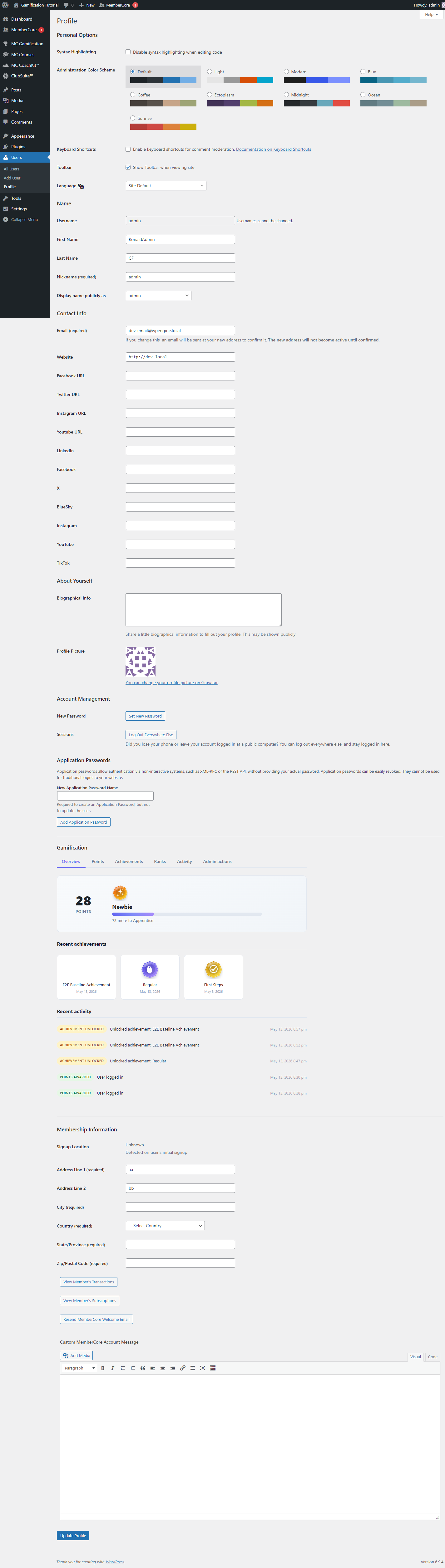
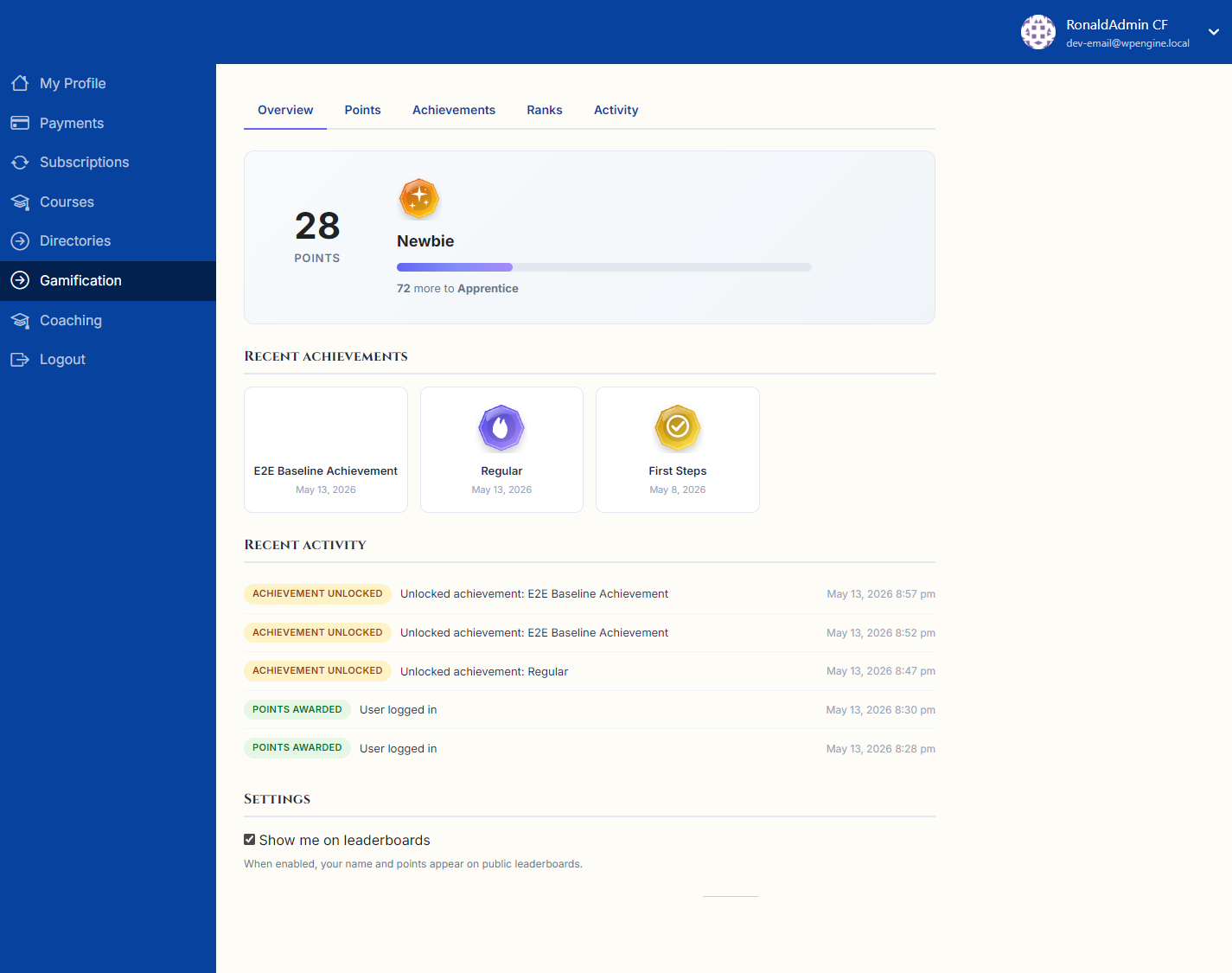
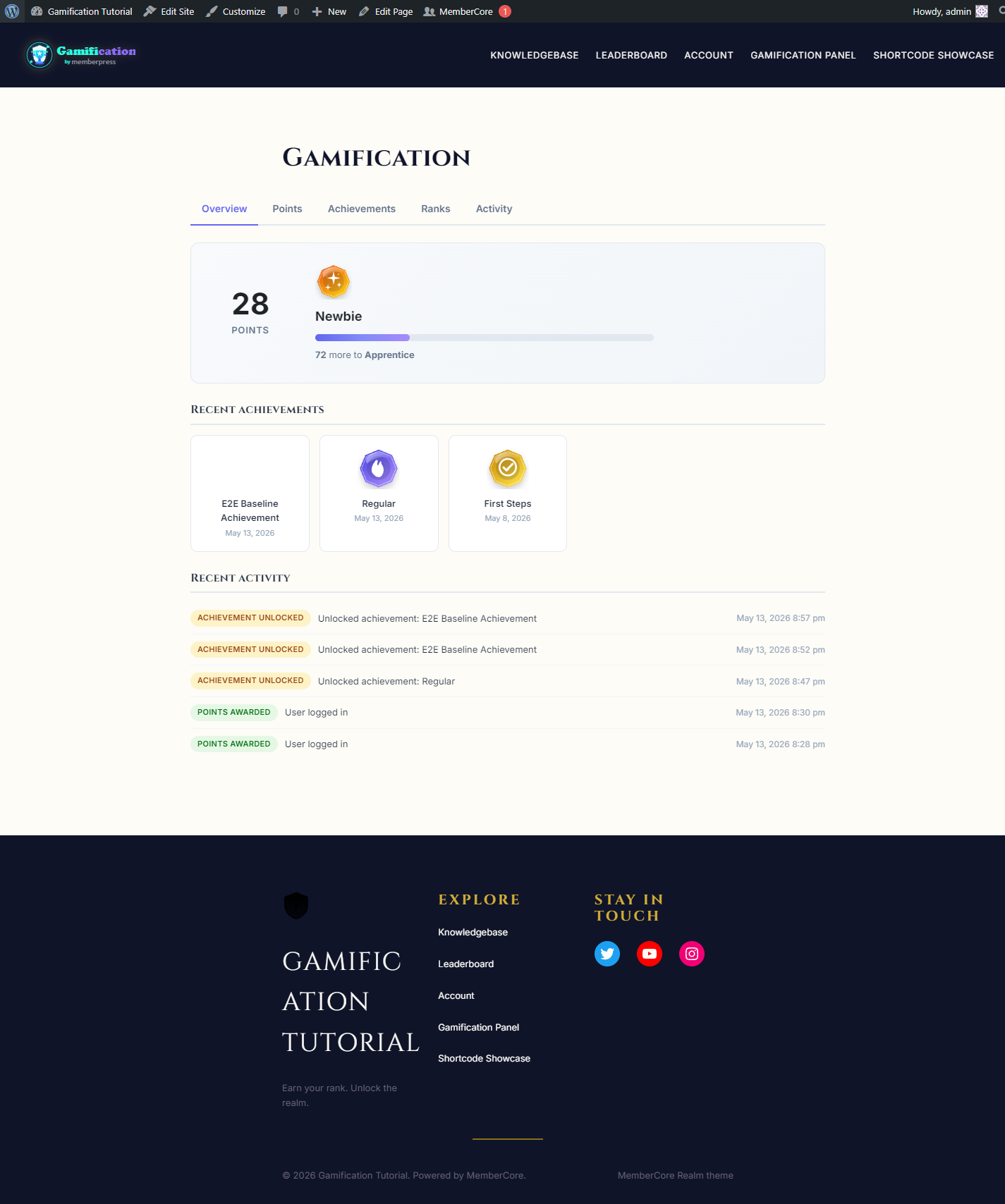
The Gamification Panel is the one member-facing surface that pulls a member’s progress together in one place: a five-tab interface with Overview (the big points number, current rank with progress, recent achievements, recent activity), Points (a paginated transaction log with a date-range filter), Achievements (a grid of earned and locked badges), Ranks (the full ladder with the member’s current position), and Activity (a filterable audit log).
Where it appears
The same panel renders in three places, so the look and behavior stay consistent wherever a member runs into it:
- Edit profile. Members get their own private view of the panel inside the WordPress profile editor (Users > Your Profile). Handy for admins who manage memberships straight from the dashboard.
- Account page. The MemberCore account page surfaces the panel as a Gamification tab, so members can see their progress without leaving the membership area.
- Shortcode or block on any page. Drop the Gamification Panel block (under the Gamification category) or the [mcgf_gamification] shortcode anywhere a builder can place content. Quick Setup creates a dedicated Gamification page that does exactly that on first install.
Block in the editor
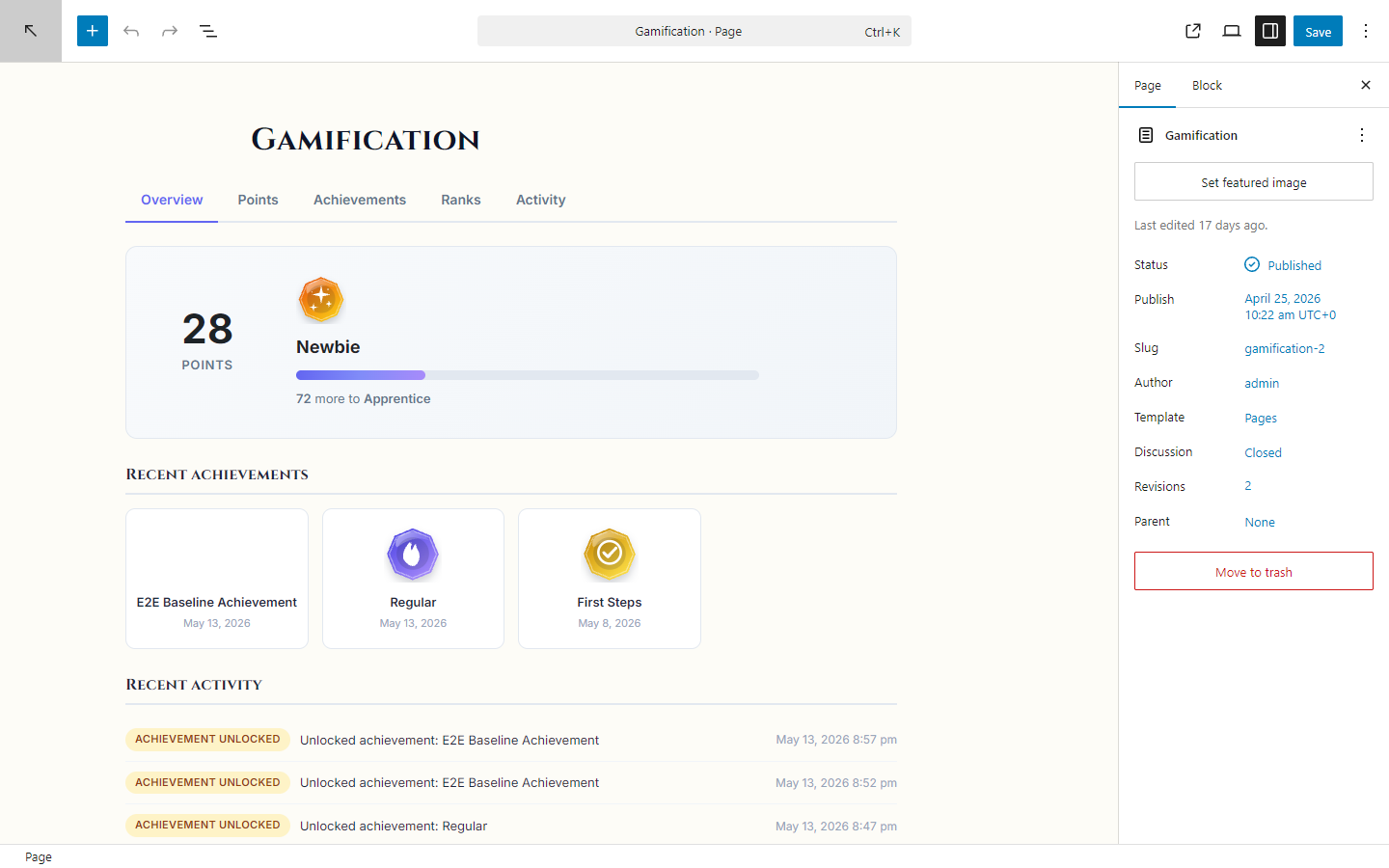
The Gamification Panel block uses ServerSideRender, so the editor preview is the exact same five-tab panel a member sees on the front end. Inspector controls let you whitelist tabs, change the default tab, hide the sub-nav strip, and set a custom login message for guests.
Shortcodes
Eight shortcodes ship with the plugin. Every one of them except [mcgf_restrict] also has a matching Gutenberg block (see the next section). The full reference, with attribute tables and copy buttons, also renders inside the plugin on the API and Hooks docs page (Shortcodes tab, scrollspy-enabled).
[mcgf_gamification default_tab="points"]

[mcgf_gamification tabs="overview,achievements"]![Full gamification panel rendered by [mcgf_gamification]](https://wlm-ronald.apps.cspf.co/wp-content/uploads/2026/04/shortcode-gamification.png)
Drops in the full tabbed Gamification panel (Overview, Points, Achievements, Ranks, Activity).
| Attribute | Default | Description |
|---|---|---|
default_tab | overview | Initial tab. One of overview, points, achievements, ranks, activity. |
tabs | (all five) | Comma-separated whitelist of tabs. Order is preserved. |
show_subnav | true | Hide the sub-tab strip when whitelisting a single tab. |
login_message | '' | Shown to logged-out visitors. Empty means render nothing for guests. |
id | auto | DOM id used as the scroll anchor. |
[mcgf_user_points]![Current point balance rendered by [mcgf_user_points]](https://wlm-ronald.apps.cspf.co/wp-content/uploads/2026/04/shortcode-user-points.png)
Shows the current member's point balance inline, with the configured label.
[mcgf_user_achievements columns="4"]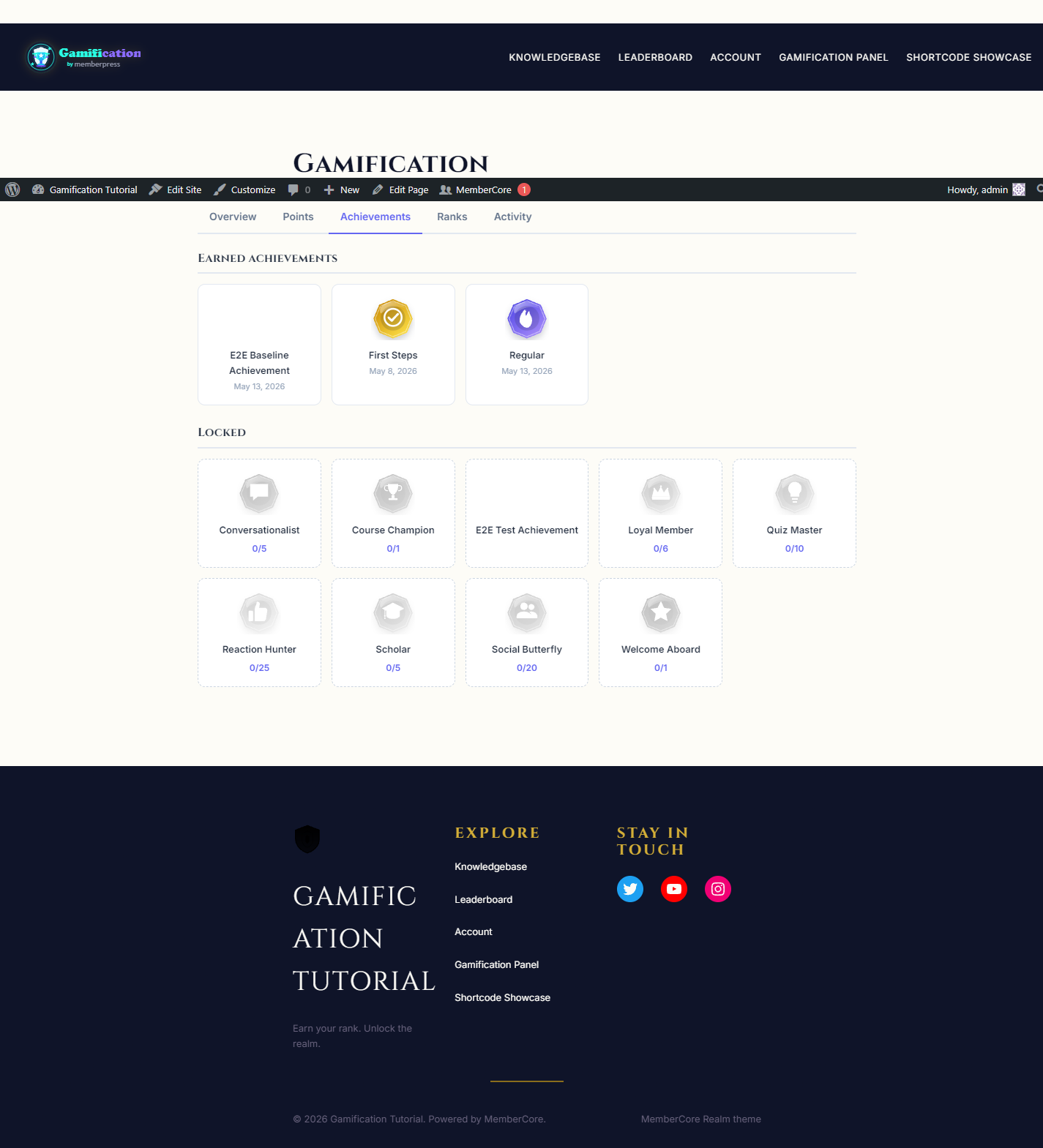
A grid of every badge the current member has earned. Hidden achievements that are still locked don’t show up here.
[mcgf_user_rank]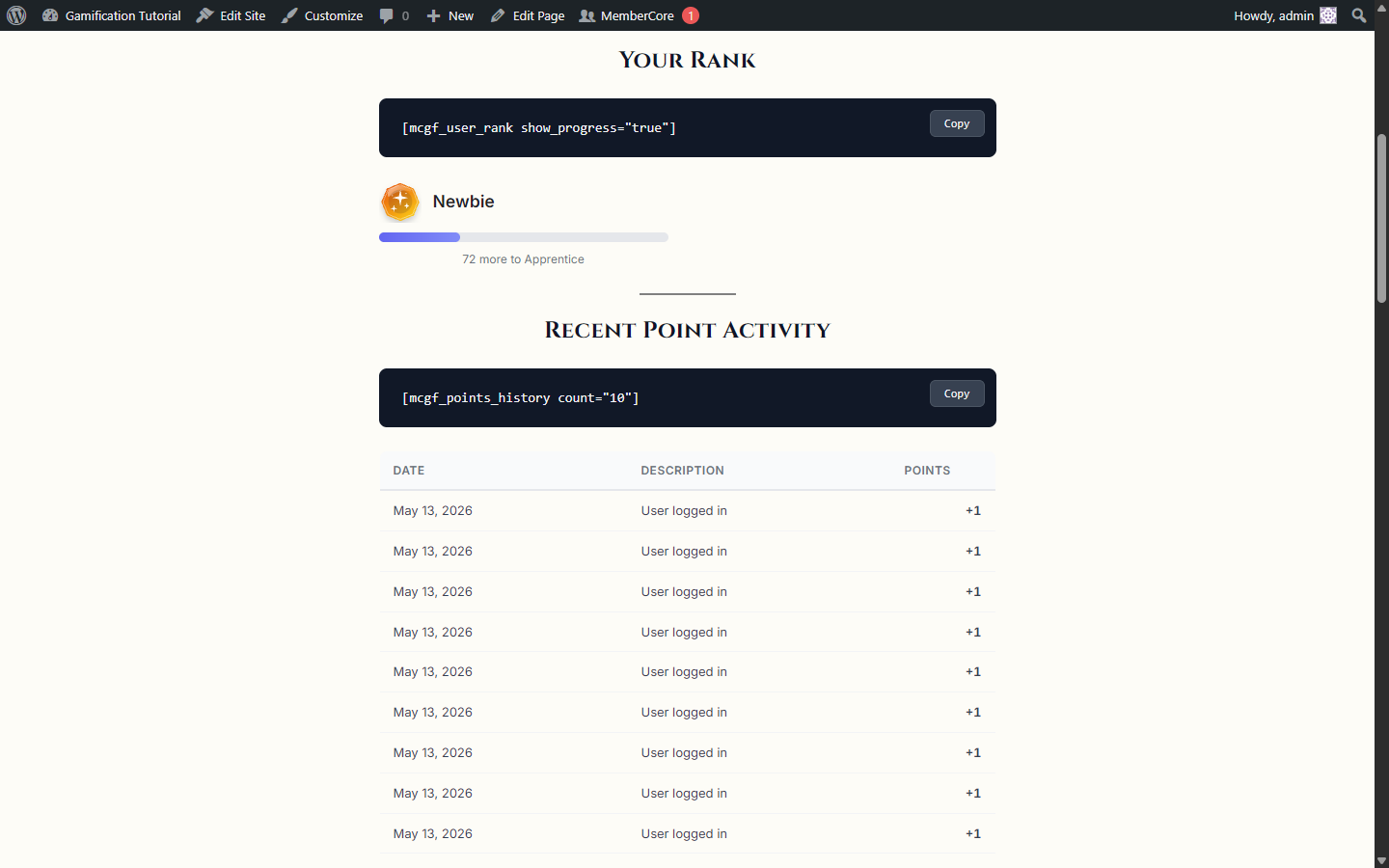
The current rank image, label, and a progress bar toward the next rank.
[mcgf_points_history per_page="10"]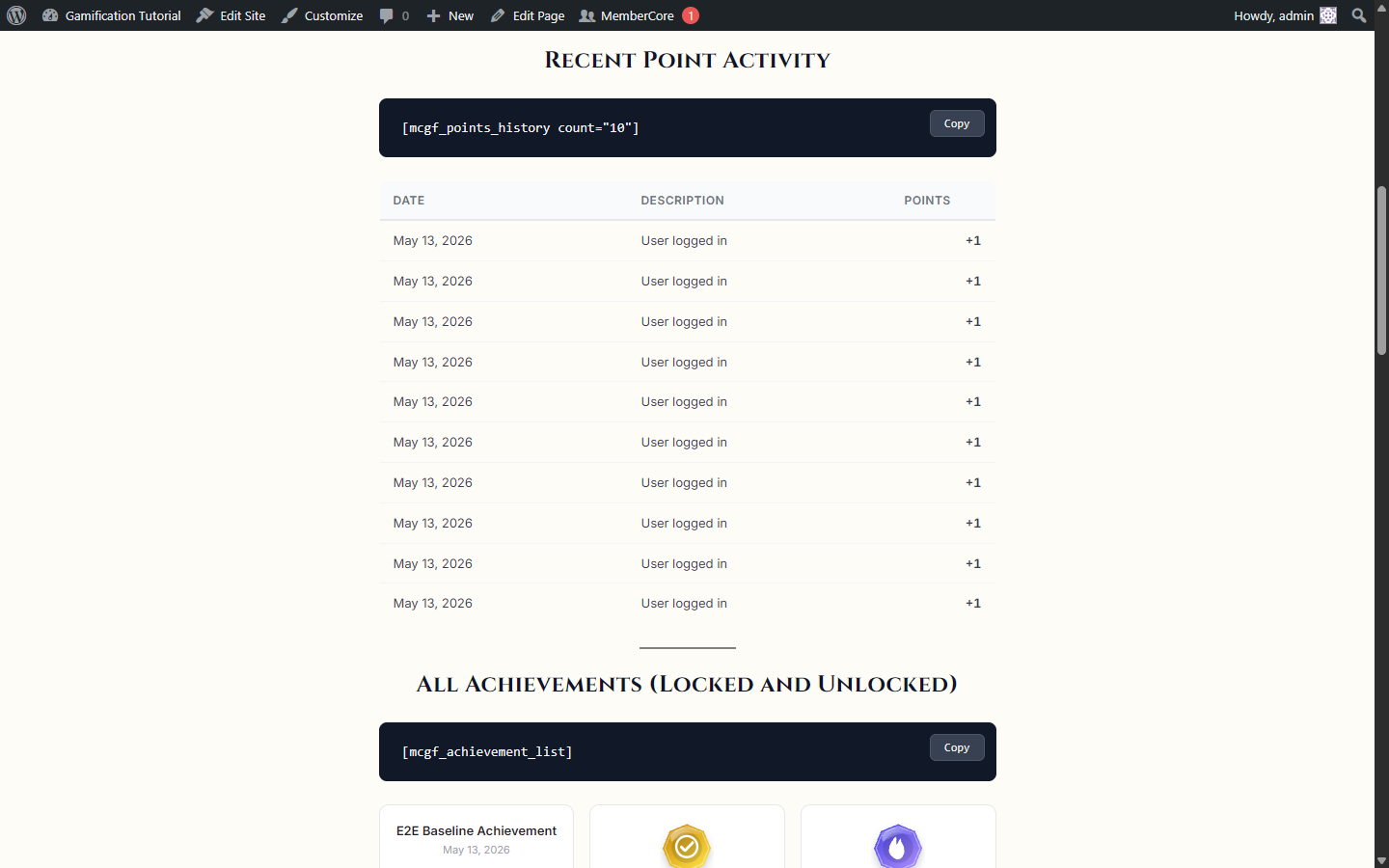
A read-only, paginated transaction log for the current member.
[mcgf_achievement_list show_locked="true"]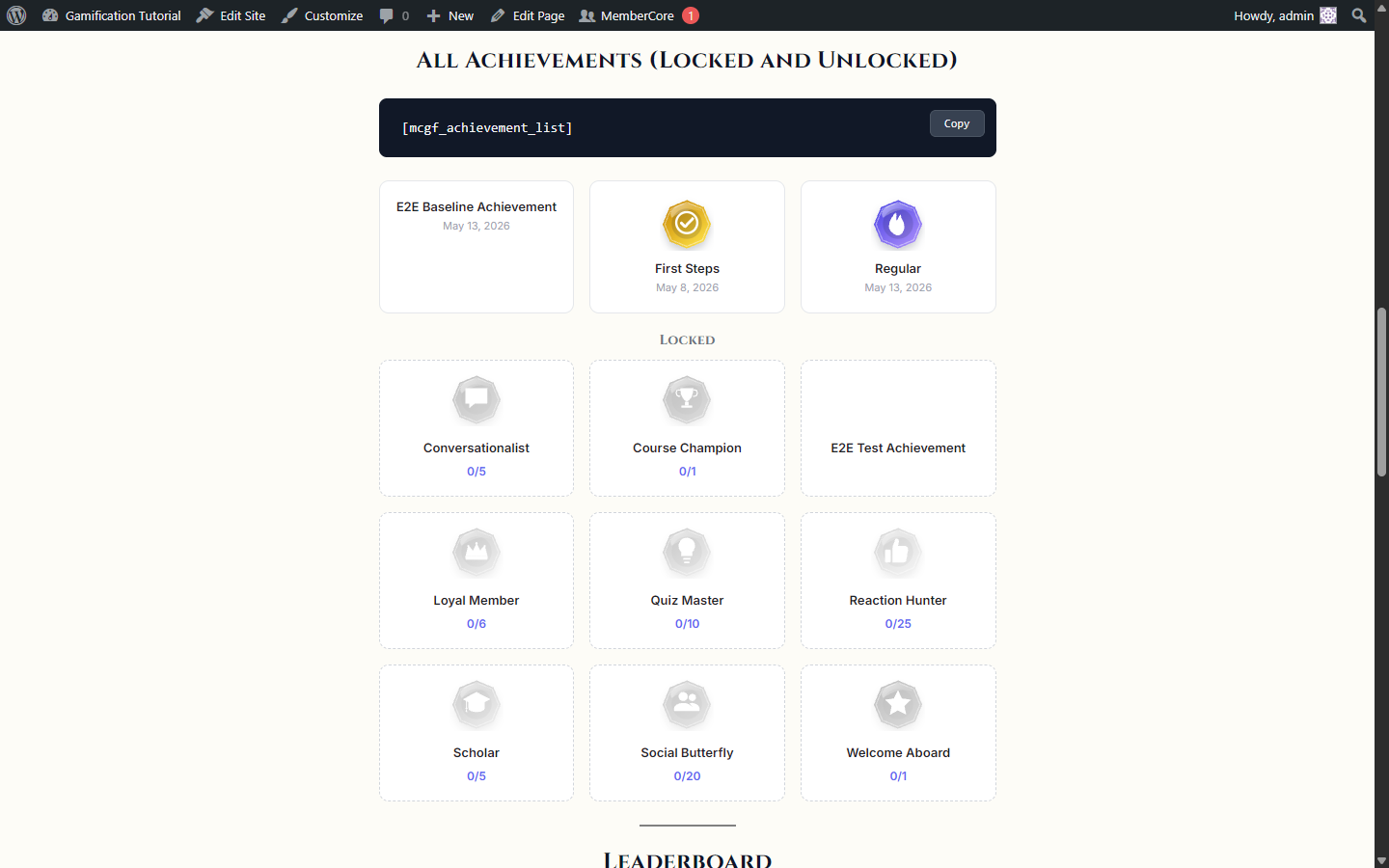
Every achievement on the site, earned, locked, and locked-with-progress, all in one grid.
[mcgf_leaderboard tabs="weekly,monthly" rows="10"]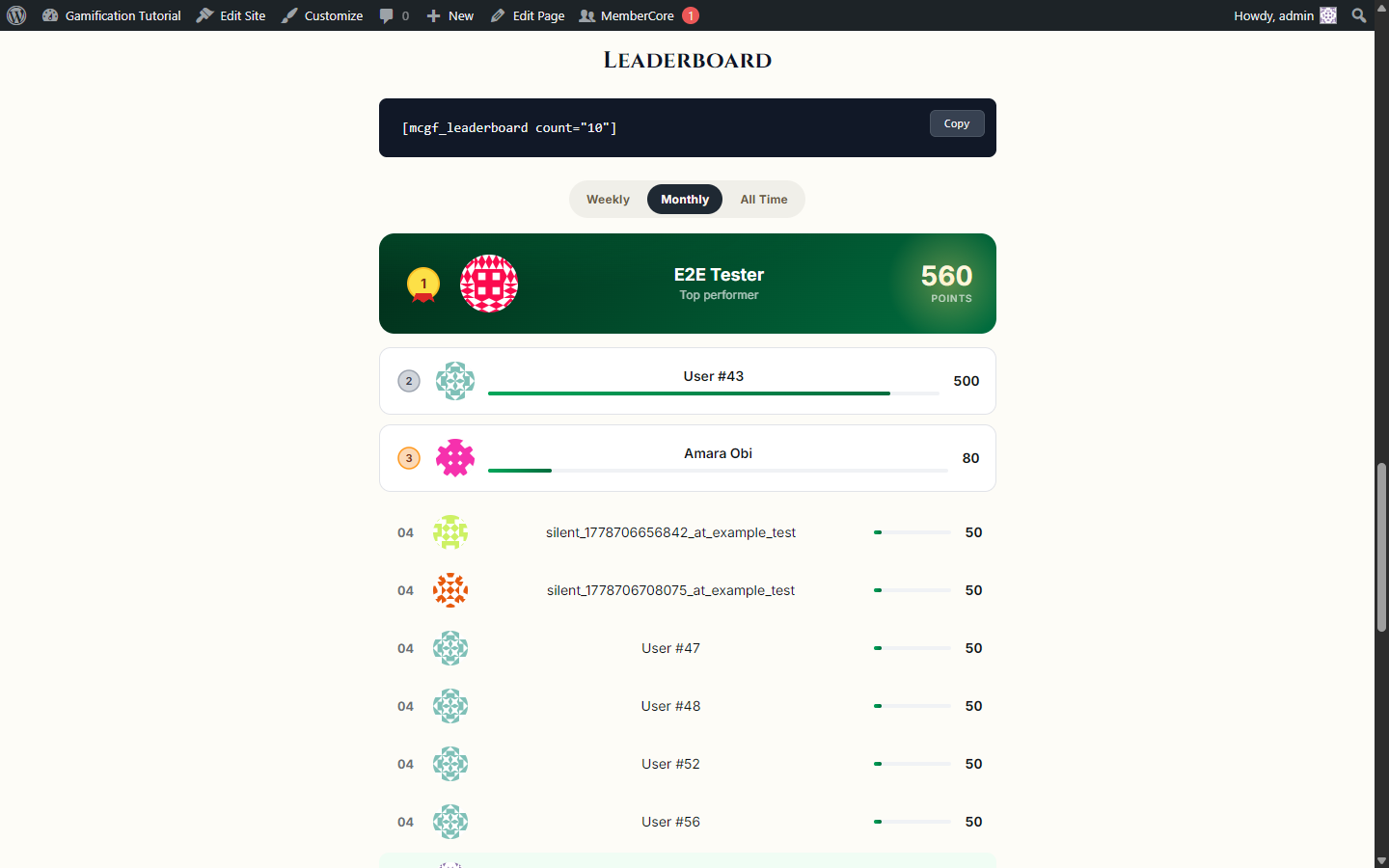
A tabbed leaderboard with Daily, Weekly, Monthly, and All Time views.
[mcgf_restrict points="100"]Premium content here.[/mcgf_restrict]

[mcgf_restrict achievement="42" rank="7"]Earned-only content.[/mcgf_restrict]
An enclosing shortcode that gates a chunk of content behind gamification progress. Logged-out users never qualify. Stack attributes together for AND logic.
Content Gating
Content Gating locks pieces of content behind gamification progress. Two mechanisms cover two different scopes, and they share the same set of conditions (points balance, a specific achievement, a rank reached):
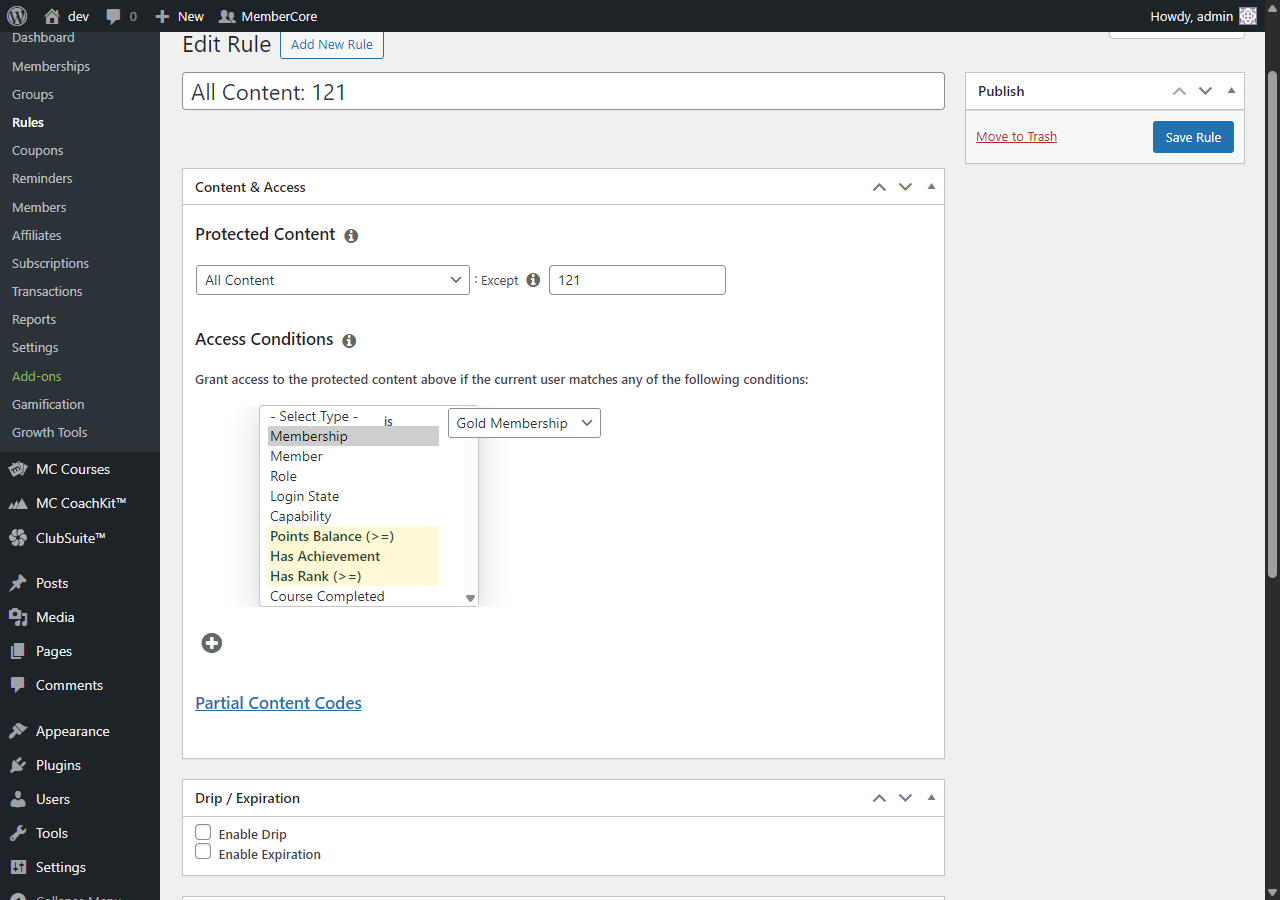
- MemberCore Rules editor (page-level gating). Three new access types show up in the rules dropdown alongside the existing membership and capability rules: Points Balance (≥), Has Achievement, and Has Rank (≥). Use any of them to gate full posts, pages, custom post types, taxonomies, or URL patterns. Members who don’t qualify see whatever unauthorized fallback you set on the rule (a login form, a redirect, or an excerpt), not an inline teaser.
- [mcgf_restrict] shortcode (inline gating). An enclosing shortcode that wraps a chunk of content inside a single page, so part of the page can stay public while another part requires progress. When a member doesn’t qualify, the gated chunk swaps out for a small lock icon and a progress teaser that tells them exactly how far they have left to go. Logged-out visitors see a generic “Requires X to unlock” message instead of a personal progress count.
Frontend rendering
Here’s the inline gate as a logged-in member sees it when they don’t yet have enough points. The surrounding paragraphs stay visible, only the wrapped chunk swaps out for the teaser.
![Frontend page rendering an [mcgf_restrict] gated section as a lock icon with progress message, surrounded by open paragraphs](https://wlm-ronald.apps.cspf.co/wp-content/uploads/2026/05/gating-frontend.png)
Shortcode attributes
| Attribute | Default | Description |
|---|---|---|
points | 0 | Minimum point balance required to view the wrapped content. |
achievement | 0 | Achievement post ID the member must have earned. |
rank | 0 | Rank post ID. The member must currently be at this rank or higher. |
Stacking attributes together gives you AND logic. The wrapped content only renders if every condition is met.
Examples
Gate by point balance (member needs at least 100 points):
[mcgf_restrict points="100"]Members with 100+ points see this premium tutorial.[/mcgf_restrict]Gate by a specific achievement (replace 42 with the achievement post ID):
[mcgf_restrict achievement="42"]Visible only to members who unlocked Loyal Member.[/mcgf_restrict]Combine conditions (member needs both a rank and an achievement):
[mcgf_restrict achievement="42" rank="7"]Earned-only content for advanced members.[/mcgf_restrict]To gate an entire page through MemberCore Rules: open MemberCore > Rules > Add New, set Access to one of the three gamification types, target the Page in the Content section, and save. The rule kicks in whether the page is reached directly, through search, or through an internal link. Members who don’t qualify see the rule’s configured unauthorized fallback (a login form, a redirect, or an excerpt), not the inline teaser.
Points Triggers
Listeners for MemberCore and most of its addons ship in the box. Each listener only loads when its addon plugin is active. The admin page is reached via MC Gamification > Points > Triggers, with addons grouped down the left side and per-trigger point value, rate limit, and Enabled toggle laid out across the right.
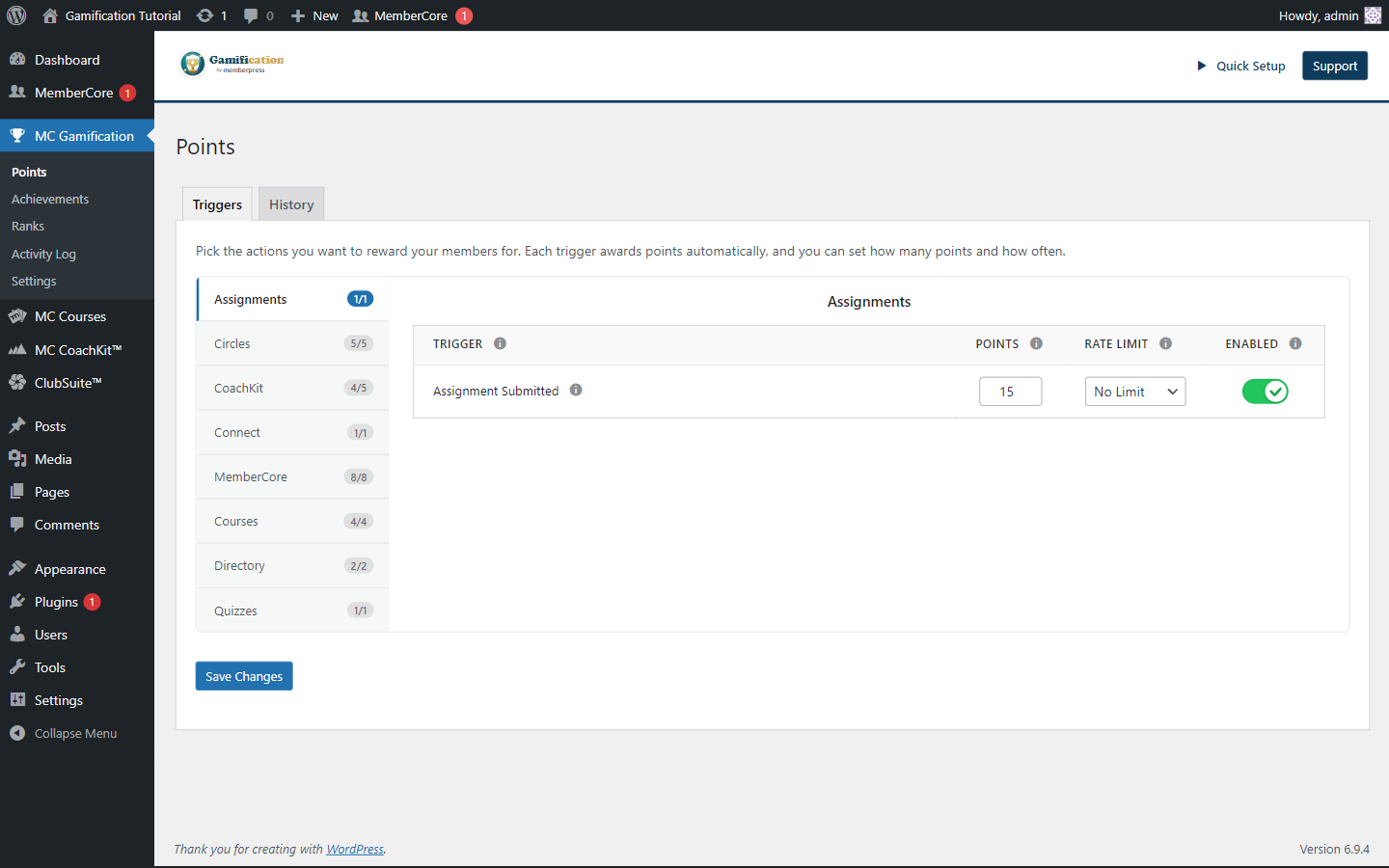
| Addon | Triggers | Listener file |
|---|---|---|
| MemberCore | Login, signup, transaction, recurring/renewal, paused, stopped, achievement unlocked | app/integrations/core/CoreListener.php |
| Courses | Lesson complete, course start/complete, section complete | app/integrations/courses/CoursesListener.php |
| Circles | Circle joined, post, comment, reply, reaction | app/integrations/circles/CirclesListener.php |
| Connect | Message sent | app/integrations/connect/ConnectListener.php |
| Directory | Enrolled, profile viewed | app/integrations/directory/DirectoryListener.php |
| CoachKit | Enrollment, milestone, habit check-in, message, attachment | app/integrations/coachkit/CoachKitListener.php |
| Course Quizzes | Quiz completed | app/integrations/quizzes/QuizzesListener.php |
| Course Assignments | Assignment submitted | app/integrations/assignments/AssignmentsListener.php |
If you deactivate an addon, historical data and trigger configs are preserved. Achievement requirements that reference inactive triggers become unfulfillable for the moment but stay editable in admin with a dormant label. Reactivate the addon and everything wakes back up. No reconfiguration needed.
Per-membership signup overrides
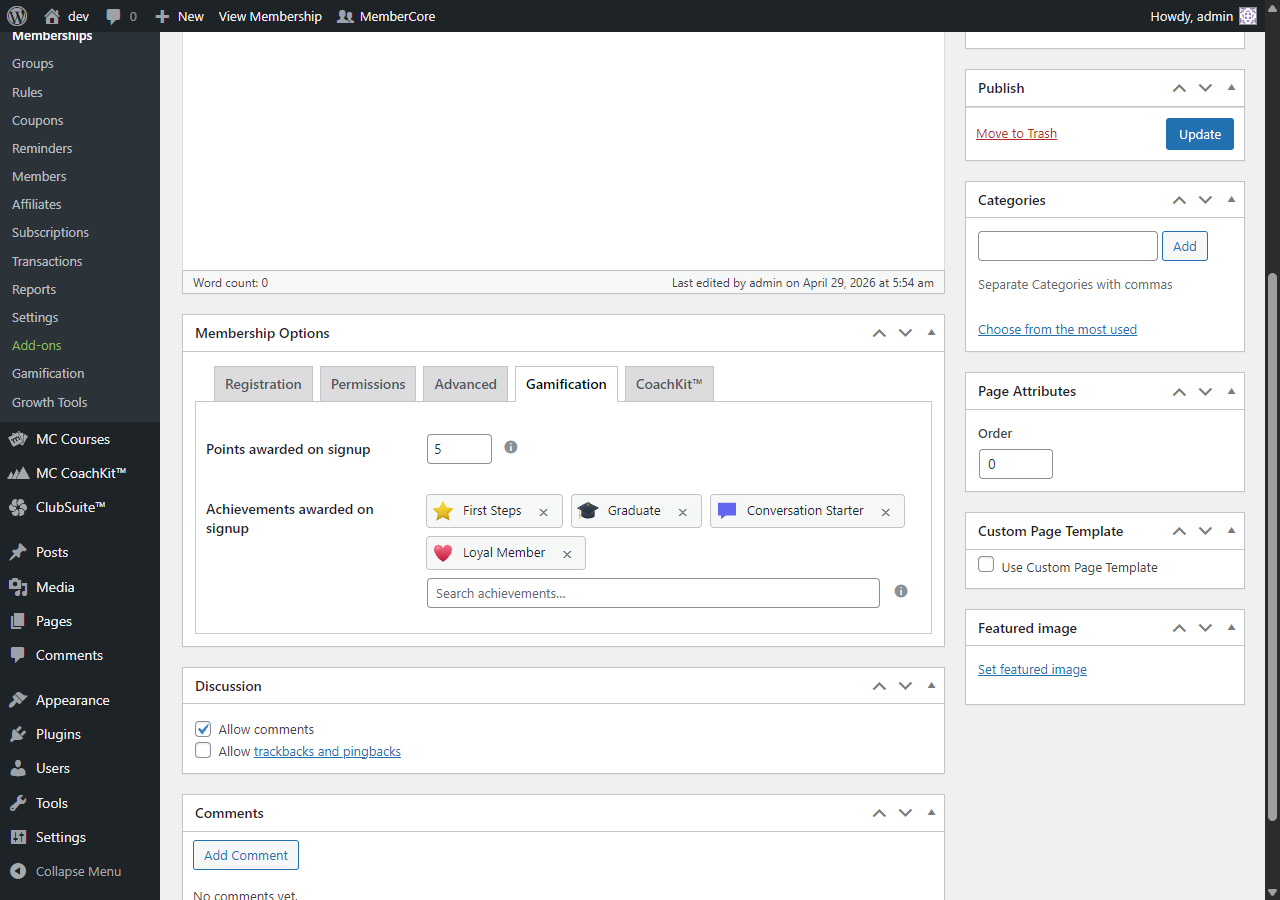
The "Signup Completed" trigger has two per-membership overrides you can set on the membership editor (Membership Options > Gamification tab): a per-membership point value and a list of achievements to auto-grant on signup. Both fields persist as post meta on the membership and get read at runtime by CoreListener::onSignup. The global trigger’s enabled flag still controls whether anything fires at all, the per-membership values only change the points awarded and the achievements granted.
MemberCore
The plugin hooks into MemberCore in two specific places: the rules editor (for content gating based on gamification progress) and the membership editor (for per-membership signup rewards). Both surfaces render inside MemberCore’s existing UI, so members never have to interact with anything new.
Rules editor: gamification access types
The rule access-types dropdown picks up three gamification additions alongside MemberCore’s built-in types (Membership, Member, Role, Login State, Capability, Course Completed, and so on):
- Points Balance (>=). Grants access once the current user’s lifetime point balance is at or above the configured threshold.
- Has Achievement. Grants access once the user has earned a specific achievement. The condition picker lists every published achievement.
- Has Rank (>=). Grants access once the user is at or above a configured rank in the rank ladder. Fails closed if that configured rank is later deleted.
Conditions stack with OR semantics, just like native MemberCore conditions: a user matching any one of them gets access. Combine these with native types to AND a points gate behind a paid membership, for example.
Membership editor: signup rewards
Editing a membership (Memberships > Edit) surfaces a new Gamification tab inside the Membership Options metabox, sitting alongside Registration, Permissions, Advanced, and the other addon tabs. The tab has two per-membership controls:
- Points awarded on signup. An override for the global Signup Completed trigger value, just for this membership. Leave it empty to fall back to the global trigger. Any integer (including 0) takes precedence per-membership.
- Achievements awarded on signup. A chip picker that auto-grants one or more achievements when a member signs up for this membership. Achievements are awarded once per user per achievement, so renewals or re-signups to the same membership won’t double up.
Both fields ride along on MemberCore’s existing membership form submission and nonce flow, so saving the membership saves your gamification settings in the same operation.
Directory
When the MemberCore Directory addon is active, two read-only gamification surfaces show up inside it: a compact summary strip on each user card in directory listings, and a full Overview / Achievements / Ranks panel on the public profile page. Both follow the same UI Theme as the rest of the gamification plugin and never expose anything private (no Points history, no Activity log).
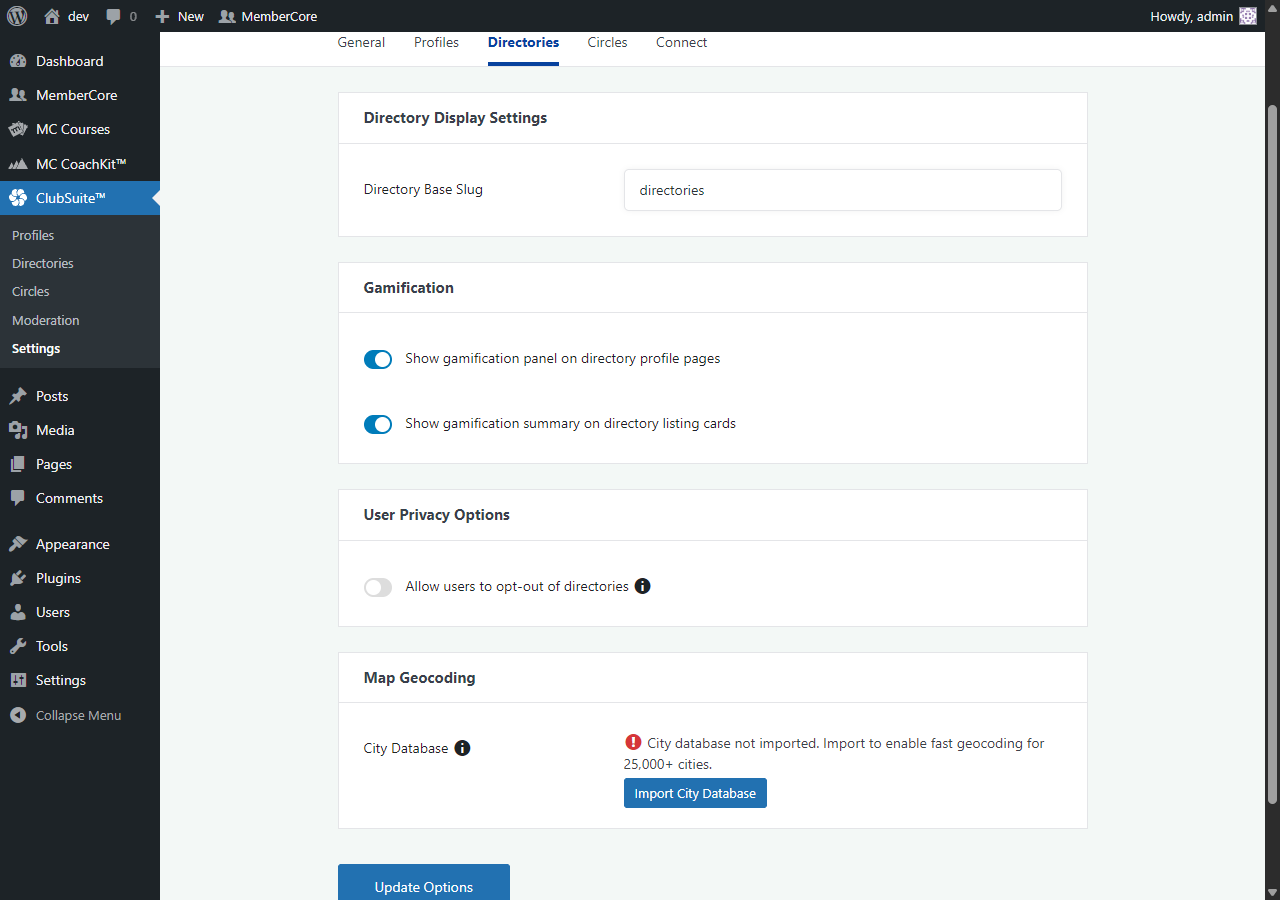
Site-wide settings
Two master switches live under ClubSuite > Settings > Directories > Gamification, one for the profile panel and one for the listing summary. Both default to off, so existing directories keep their current look until you opt in. When either is off, the matching surface renders nothing for every user, no matter what personal preferences are set.
Per-user controls
Each member can override the admin defaults from their own profile-name modal in the directory. Two checkboxes mirror the admin toggles (show panel, show summary strip) and a tab whitelist lets them pick which of the three panel tabs are visible. Admin OFF always wins over user ON, so admins keep the final say. If a user clears all panel tabs, the panel hides for that user even when the admin master is on.
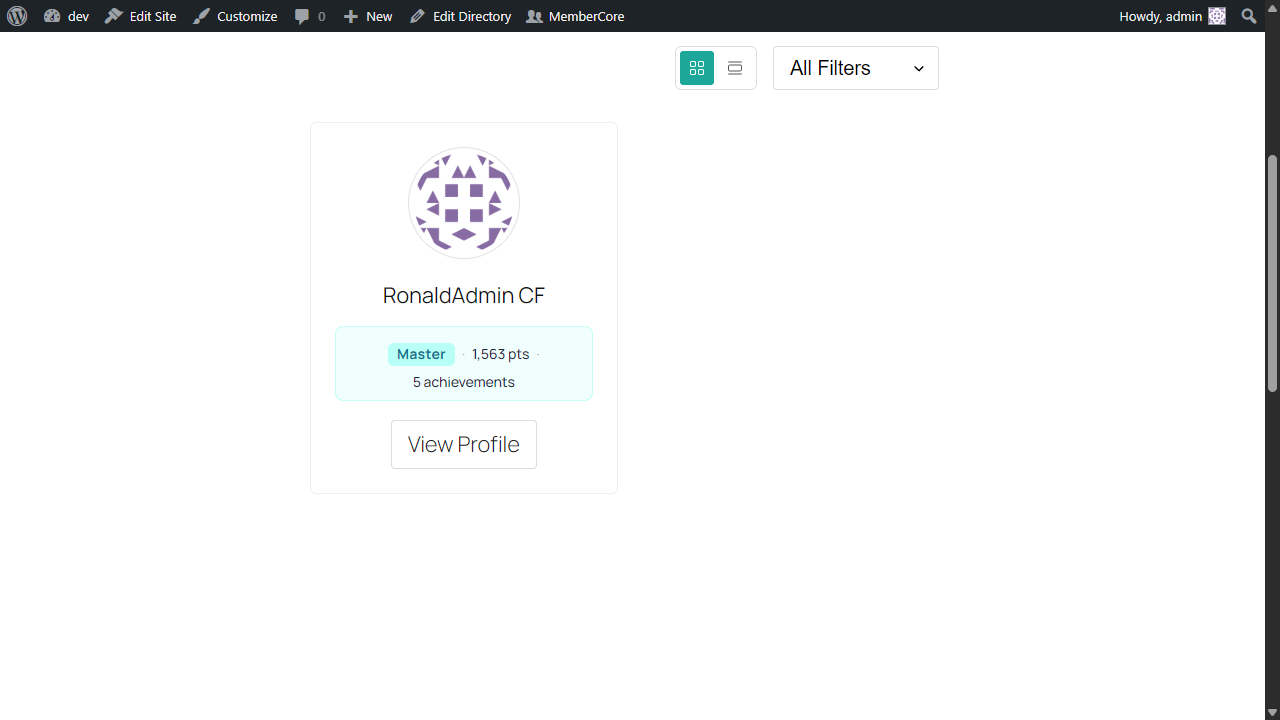
Listing summary strip
The summary on a user card is a single line: rank · points · achievement count. It’s rendered by a new directory-gamification-summary block scoped to the directory user template, so you can reorder or remove it from the directory’s block editor like any other card field.
Profile gamification panel
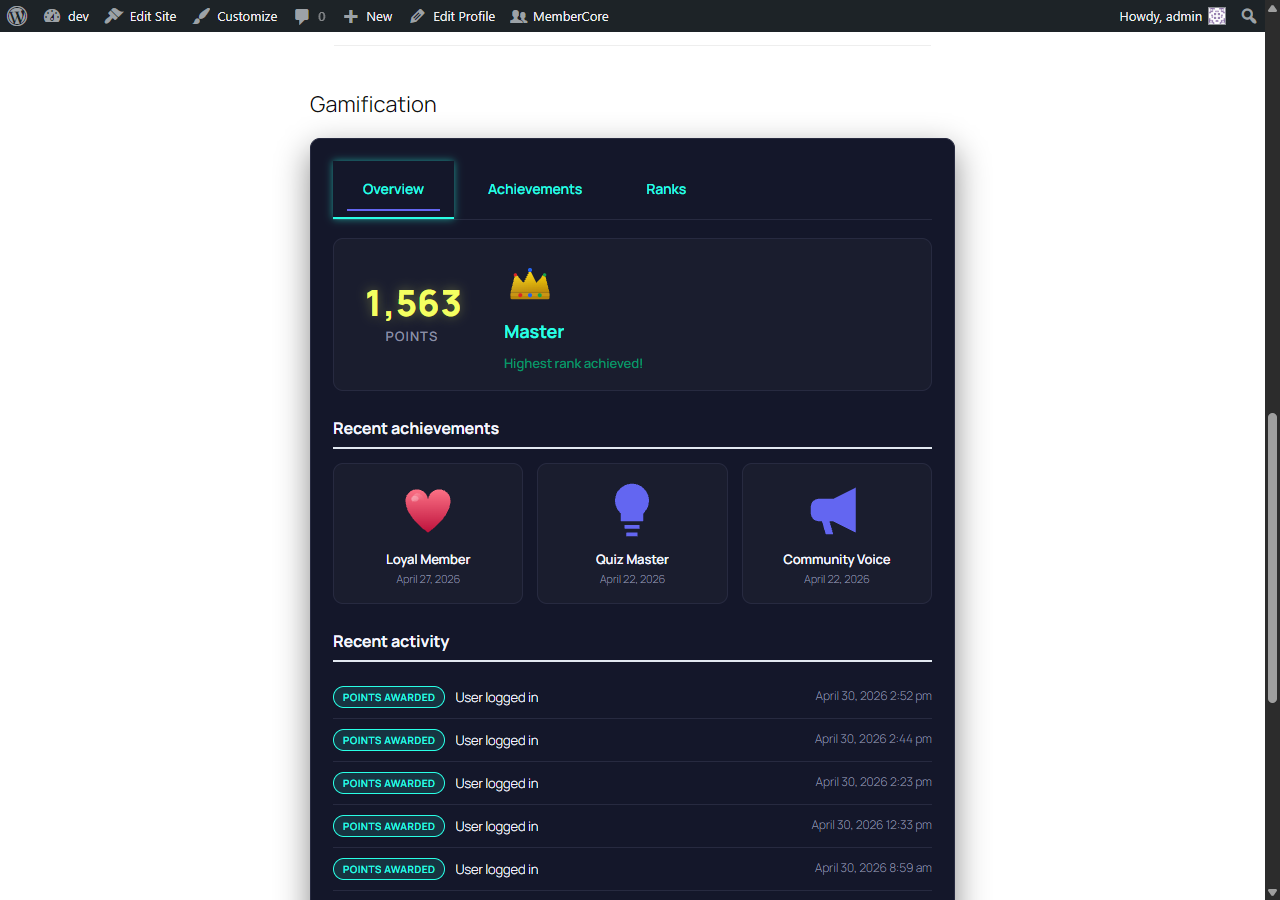
The public profile page hosts a profile-gamification-panel block that surfaces a read-only Overview, Achievements, and Ranks view of the profile’s owner. Points history, activity log, and the leaderboard opt-in toggle are intentionally left out of this surface. The block resolves the profile owner from the directory’s URL, never from the current viewer, so any logged-in member sees the profile owner’s progress and not their own.
Plugin independence
Either plugin can be deactivated without breaking the other. The directory plugin owns the integration glue, gating, and admin toggles. The gamification plugin only exposes a public render entry point. Saved layouts that reference the new blocks render nothing (and throw no errors) when the gamification plugin is off.
REST API
The REST API lets external systems read gamification data and award or deduct points programmatically. Every request is authenticated with a Bearer token that you generate from the API tab in Gamification settings, and every token is scoped so it can only do what it was issued for.
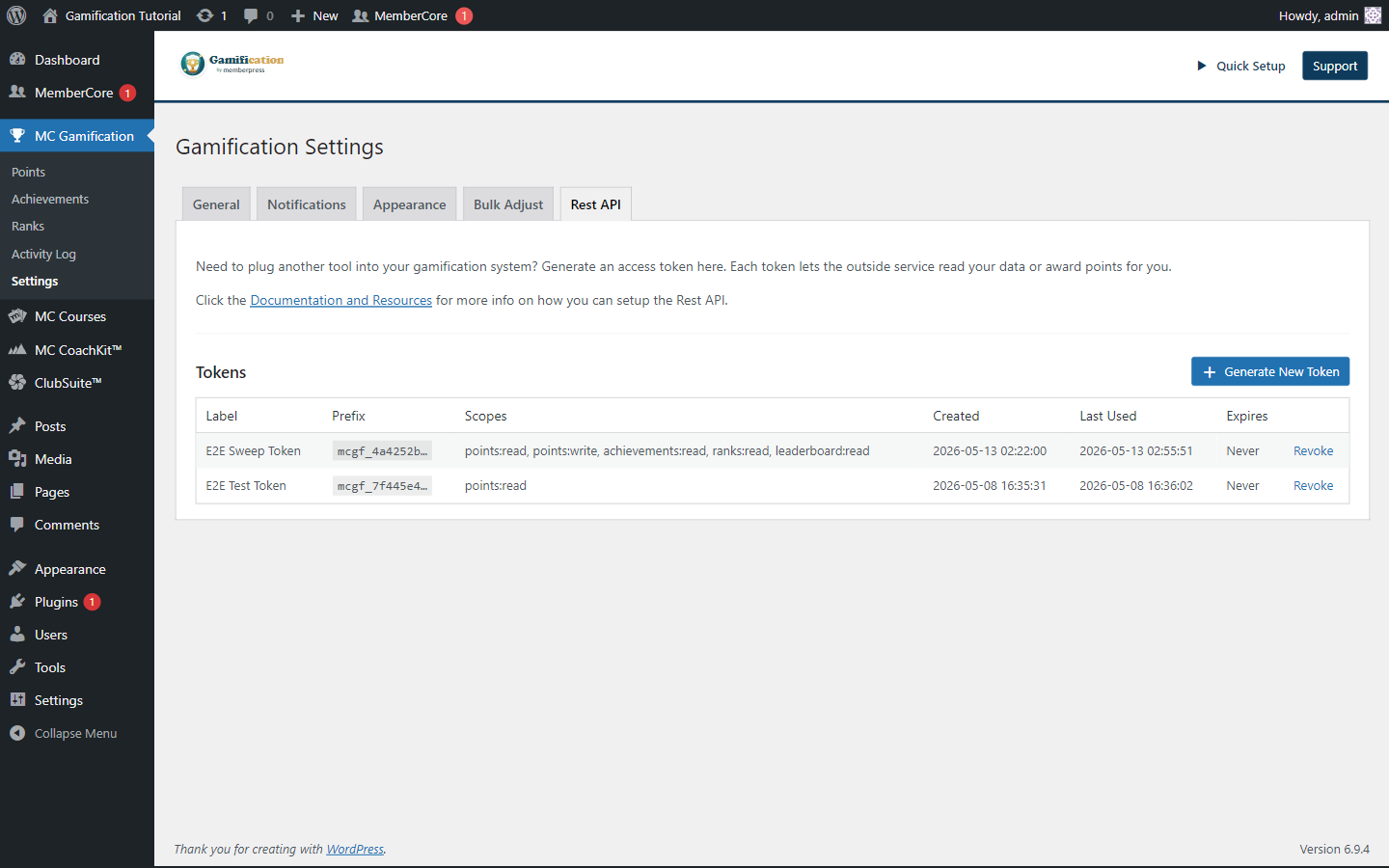
Where to find it
Head to MC Gamification › Settings › Rest API. The inner tab lists every active token with its label, prefix, scopes, created and last-used timestamps, expiry, and a Revoke action.
Creating a token
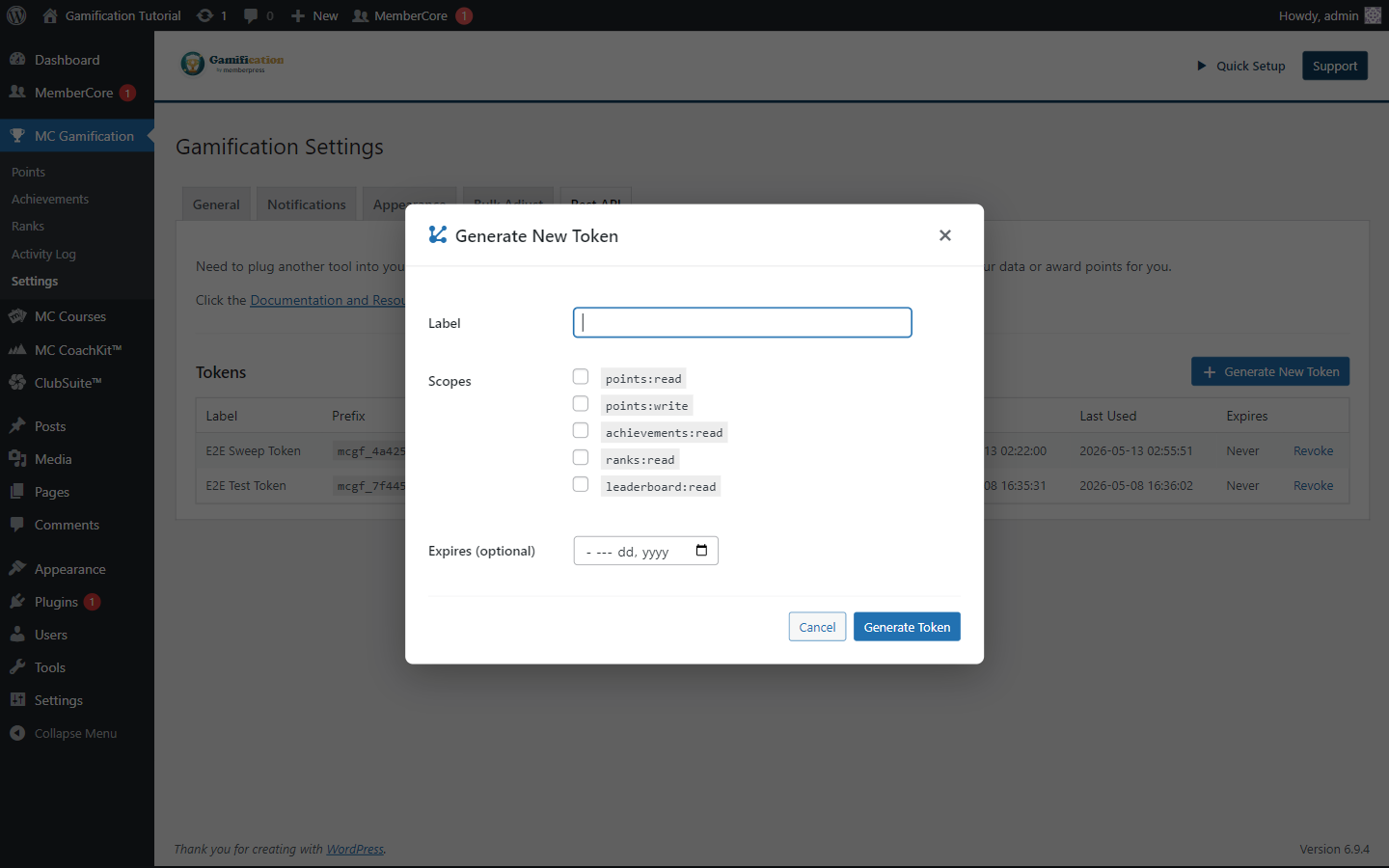
- Click Generate New Token in the top-right of the Tokens panel.
- Give the token a Label you’ll recognize later (the system or person it belongs to).
- Tick the Scopes the token actually needs. Pick the smallest set that gets the job done. A read-only integration should never get
points:write. - Optionally pick an Expires date. Tokens without an expiry never expire and have to be revoked manually.
- Click Generate Token.
The plugin then shows the full token once. Copy it and stash it somewhere safe (a password manager or secrets vault). Close the dialog without copying it and your only option is to revoke the token and generate a new one.
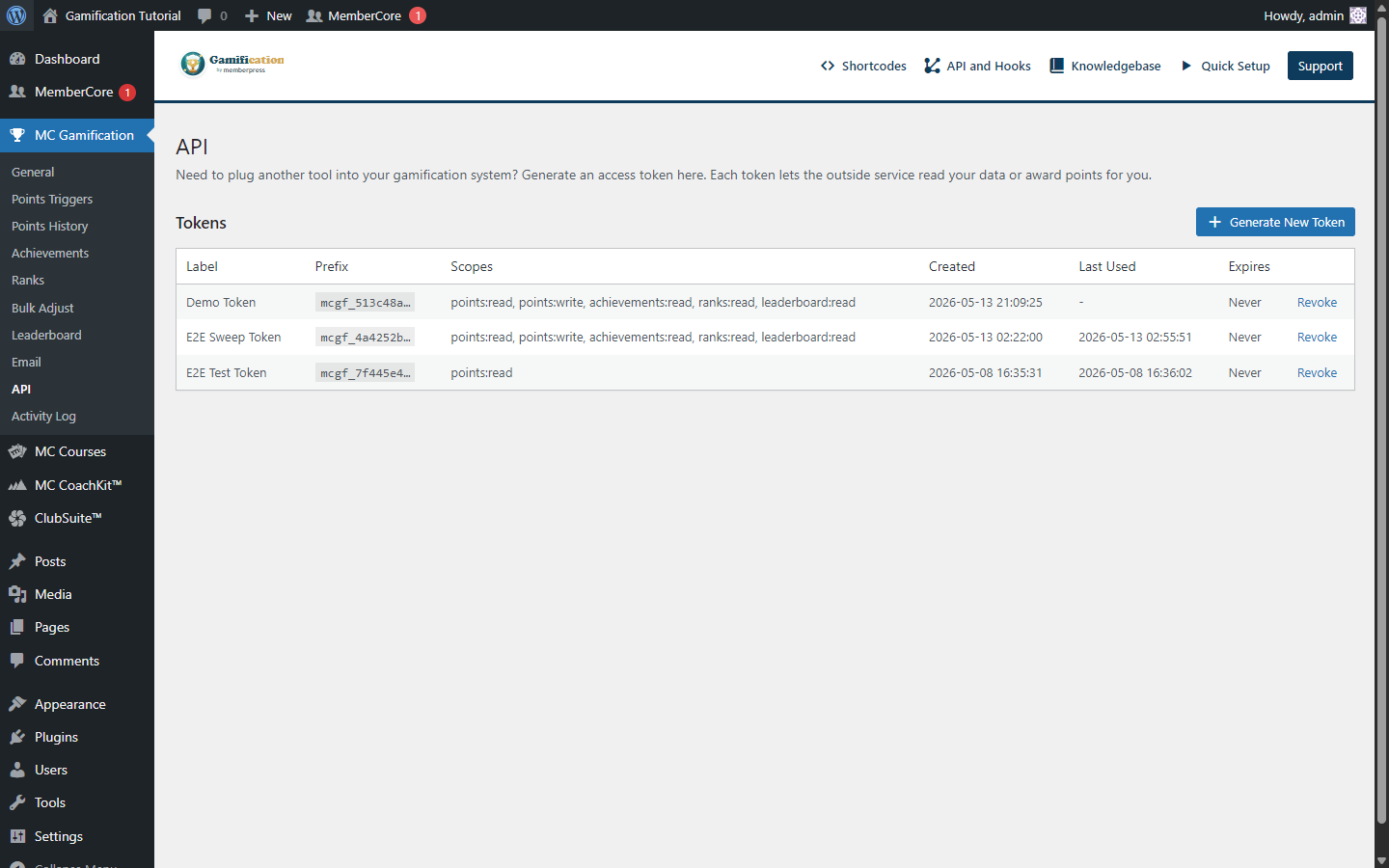
Scopes
| Scope | Grants |
|---|---|
points:read | Read point balances and transaction history. |
points:write | Award, deduct, and adjust points (subject to trigger rate-limits). |
achievements:read | Read achievement catalog and per-user awards. |
ranks:read | Read ranks and per-user rank progress. |
leaderboard:read | Read the leaderboard for any timeframe. |
Using a token
Send the token in the Authorization header of every request. Query-string tokens aren’t accepted.
curl -H 'Authorization: Bearer mcgf_8a3f2b1c...'
  'https://wlm-ronald.apps.cspf.co/wp-json/mcgf/v1/me'
Revoking a token
Click Revoke on any row in the Tokens list to invalidate the token right away. Revoke is permanent: once a token is revoked, every request that uses it gets back 401 mcgf_api_invalid_token.
Endpoint reference
The full endpoint specs (paths, parameters, example requests and responses, error codes) live on the REST API documentation page. It’s public, doesn’t need a login, and is safe to share with external developers.
Hooks and Filters
mcgf_register_triggers
An action fired during init. Hook in to register custom triggers your plugin emits. The optional 5th argument is a plain-language description that surfaces as an info-icon tooltip next to the trigger label in the Triggers admin tab.
add_action('mcgf_register_triggers', function () {

    \membercore\gamification\helpers\TriggerRegistry::register(

        'webinar_attended',

        'Webinar Attended',

        'my-webinar-plugin',

        15,

        'Fires whenever a member attends a live webinar.'

    );

});
Once it’s registered, fire the trigger with RulesEngine::trigger($key, $data). The data array also accepts an optional "points_override" key (a non-negative integer) that replaces the configured trigger value for just that single firing. Same generic key that powers per-membership signup-points.
mcgf_points_awarded
An action fired after every successful point award. Handy for cross-system bookkeeping. The trailing $silent arg is true when the event came from an admin bulk operation that asked to skip user-facing side effects. Ignore it unless your listener is the one sending notifications or emails.
add_action('mcgf_points_awarded', function ($user_id, $amount, $trigger_type, $trigger_id, $silent = false) {

    if ($silent) return;

    // React to points being awarded.

}, 10, 5);
mcgf_achievement_unlocked
An action fired when an achievement is awarded. The trailing $silent arg is true when an admin bulk operation has suppressed user-facing notifications.
add_action('mcgf_achievement_unlocked', function ($user_id, $achievement_id, $trigger_type, $trigger_id, $silent = false) {

    if ($silent) return;

    // React to achievement unlock.

}, 10, 5);
mcgf_rank_promoted
An action fired when a user is promoted to a new rank. The trailing $silent arg is true when an admin bulk operation has suppressed user-facing notifications.
add_action('mcgf_rank_promoted', function ($user_id, $new_rank_id, $old_rank_id, $silent = false) {

    if ($silent) return;

    // React to rank promotion.

}, 10, 4);
mcgf_panel_tabs + mcgf_panel_render_section_<slug>
A filter and a dynamic action that together let you add a custom tab to the unified Gamification panel. Branch on $args["surface"] if your tab should only render on one surface.
add_filter('mcgf_panel_tabs', function ($tabs, $surface, $args) {

    if ($surface !== 'account') return $tabs;

    $tabs['quests'] = __('Quests', 'my-quests-plugin');

    return $tabs;

}, 10, 3);


add_action('mcgf_panel_render_section_quests', function ($user_id, $args) {

    echo '<div class="my-quests-panel">';

    // ... render the quest UI for $user_id ...

    echo '</div>';

}, 10, 2);
Full hook list
The complete reference, with signatures and where each hook fires, lives on the API and Hooks page rendered by the plugin itself.